---
title: LLM Connections
description: How to set up an LLM connection in Langfuse to use in the Playground or for LLM-as-a-Judge evaluations.
sidebarTitle: LLM Connections
---
# LLM Connections
LLM connections are used to call models in the Langfuse Playground or for LLM-as-a-Judge evaluations.
## Setup
1. Navigate to your `Project Settings` > `LLM Connections` and **click on** `Add new LLM API key`.
2. Enter the name of the LLM connection and the API key for the model you want to use.
You can use the [API](/docs/api-and-data-platform/features/public-api) to manage LLM connections:
```bash
GET /api/public/llm-connections
PUT /api/public/llm-connections
```
## Supported providers
The Langfuse platform is currently supporting the following LLM providers:
- OpenAI
- Azure OpenAI
- Anthropic
- Google AI Studio
- Google Vertex AI
- Amazon Bedrock
Supported models
Currently the playground supports the following models by default. You may configure additional custom model names when adding your LLM API Key in the Langfuse project settings, e.g. when using a custom model or proxy.
export function ModelList() {
const openAIModels = [
"o3",
"o3-2025-04-16",
"o4-mini",
"o4-mini-2025-04-16",
"gpt-4.1",
"gpt-4.1-2025-04-14",
"gpt-4.1-mini-2025-04-14",
"gpt-4.1-nano-2025-04-14",
"gpt-4o",
"gpt-4o-2024-08-06",
"gpt-4o-2024-05-13",
"gpt-4o-mini",
"gpt-4o-mini-2024-07-18",
"o3-mini",
"o3-mini-2025-01-31",
"o1-preview",
"o1-preview-2024-09-12",
"o1-mini",
"o1-mini-2024-09-12",
"gpt-4-turbo-preview",
"gpt-4-1106-preview",
"gpt-4-0613",
"gpt-4-0125-preview",
"gpt-4",
"gpt-3.5-turbo-16k-0613",
"gpt-3.5-turbo-16k",
"gpt-3.5-turbo-1106",
"gpt-3.5-turbo-0613",
"gpt-3.5-turbo-0301",
"gpt-3.5-turbo-0125",
"gpt-3.5-turbo",
];
const anthropicModels = [
"claude-3-7-sonnet-20250219",
"claude-3-5-sonnet-20241022",
"claude-3-5-sonnet-20240620",
"claude-3-opus-20240229",
"claude-3-sonnet-20240229",
"claude-3-5-haiku-20241022",
"claude-3-haiku-20240307",
"claude-2.1",
"claude-2.0",
"claude-instant-1.2",
];
const vertexAIModels = [
"gemini-2.5-pro-exp-03-25",
"gemini-2.0-pro-exp-02-05",
"gemini-2.0-flash-001",
"gemini-2.0-flash-lite-preview-02-05",
"gemini-2.0-flash-exp",
"gemini-1.5-pro",
"gemini-1.5-flash",
"gemini-1.0-pro",
];
const googleAIStudioModels = [
"gemini-2.5-pro-exp-03-25",
"gemini-2.0-flash",
"gemini-2.0-flash-lite-preview-02-05",
"gemini-2.0-flash-thinking-exp-01-21",
"gemini-1.5-pro",
"gemini-1.5-flash",
"gemini-1.5-flash-8b",
];
return (
-
Any model that supports the OpenAI API schema: The
Playground and LLM-as-a-Judge evaluations can be used by any framework
that supports the OpenAI API schema such as Groq, OpenRouter, Vercel
AI Gateway, LiteLLM, Hugging Face, and more. Just replace the API Base
URL with the appropriate endpoint for the model you want to use and
add the providers API keys for authentication.
-
OpenAI / Azure OpenAI: {openAIModels.join(", ")}
-
Anthropic: {anthropicModels.join(", ")}
-
Google Vertex AI: {vertexAIModels.join(", ")}. You
may also add additional model names supported by Google Vertex AI
platform and enabled in your GCP account through the `Custom model
names` section in the LLM API Key creation form.
-
Google AI Studio: {googleAIStudioModels.join(", ")}
-
Amazon Bedrock: All Amazon Bedrock models are
supported. The required permission on AWS is `bedrock:InvokeModel` and
`bedrock:InvokeModelWithResponseStream`.
);
}
You may connect to third party LLM providers if their API schema implements the schema of one of our supported provider adapters. For example, you may connect to Mistral by using the OpenAI adapter in Langfuse to connect to Mistral's OpenAI compliant API.
## Advanced configurations
### Additional provider options
Provider options are **not set up in the Project Settings > LLM Connections**
page but either when selecting a LLM Connection on the
[Playground](/docs/prompt-management/features/playground) or during
[LLM-as-a-Judge](/docs/evaluation/evaluation-methods/llm-as-a-judge) Evaluator
setup.
LLM calls from a created LLM connection can be configured with a specific set of parameters, such as `temperature`, `top_p`, and `max_tokens`.
However, many LLM providers allow for additional parameters, including `reasoning_effort`, `service_tier`, and others when invoking a model. These parameters often differ between providers.
You can provide additional configurations as a JSON object for all LLM invocations. In the model parameters settings, you will find a "provider options" field at the bottom. This field allows you to enter specific key-value pairs accepted by your LLM provider's API endpoint.
Please see your providers API reference for what additional fields are supported:
- [Anthropic Messages API Reference](https://docs.anthropic.com/en/api/messages)
- [OpenAI Chat Completions API Reference](https://platform.openai.com/docs/api-reference/chat/create)
- [Google Gemini API Reference](https://ai.google.dev/api)
- [Google Vertex AI Gemini API Reference](https://cloud.google.com/vertex-ai/generative-ai/docs/model-reference/inference)
This feature is currently available for the adapters for:
- Anthropic
- OpenAI
- Google AI Studio
- Google Vertex AI
- AWS (Amazon Bedrock)
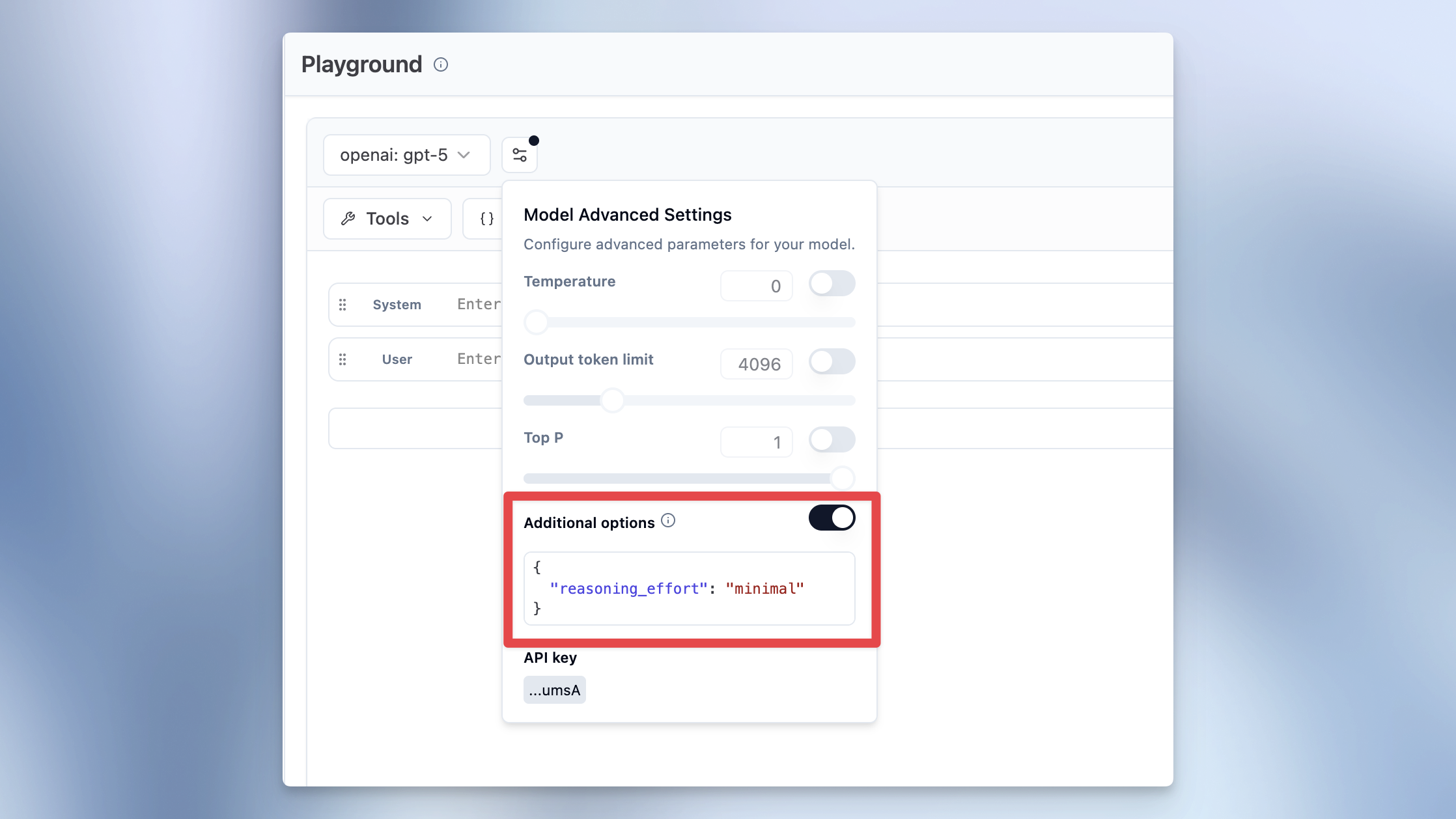
Example for forcing reasoning effort `minimal` on an OpenAI gpt-5 invocation:
Example provider options for Google models (Google AI Studio and Google Vertex AI) to control thinking:
```json
{
"thinkingLevel": "MEDIUM",
"thinkingBudget": 2048
}
```
`thinkingLevel` controls the reasoning depth, and `thinkingBudget` sets the token budget for thinking. These options are only valid for Google models that support thinking.
### Connecting via a gateway
If you route LLM calls through an OpenAI-compatible gateway such as [LiteLLM](/integrations/gateways/litellm), [OpenRouter](/integrations/gateways/openrouter), or [Portkey](/integrations/gateways/portkey), you can use it as your LLM connection for the Playground and LLM-as-a-Judge evaluations.
To set this up:
1. Navigate to **Project Settings** > **LLM Connections** and click **Add new LLM API key**.
2. Select **OpenAI** as the provider.
3. Enter the API key for your gateway.
4. Under **Advanced Settings**, set the **Base URL** to your gateway's endpoint, e.g. `https://your-litellm-instance.com/v1`.
5. Add any **custom model names** that your gateway exposes.
The gateway must support [tool
calling](https://platform.openai.com/docs/guides/function-calling) in the
OpenAI format for LLM-as-a-Judge evaluations to work.
For OpenAI-compatible gateways, here is an example tool calling request that must be handled by the gateway to support LLM-as-a-Judge in Langfuse:
```bash // // // //
curl -X POST 'https:///chat/completions' \
-H 'accept: application/json' \
-H 'content-type: application/json' \
-H 'authorization: Bearer ' \
-H 'x-test-header-1: ' \
-H 'x-test-header-2: ' \
-d '{
"model": "",
"temperature": 0,
"top_p": 1,
"frequency_penalty": 0,
"presence_penalty": 0,
"max_tokens": 256,
"n": 1,
"stream": false,
"tools": [
{
"type": "function",
"function": {
"name": "extract",
"parameters": {
"type": "object",
"properties": {
"score": {
"type": "string"
},
"reasoning": {
"type": "string"
}
},
"required": [
"score",
"reasoning"
],
"additionalProperties": false,
"$schema": "http://json-schema.org/draft-07/schema#"
}
}
}
],
"tool_choice": {
"type": "function",
"function": {
"name": "extract"
}
},
"messages": [
{
"role": "user",
"content": "Evaluate the correctness of the generation on a continuous scale from 0 to 1. A generation can be considered correct (Score: 1) if it includes all the key facts from the ground truth and if every fact presented in the generation is factually supported by the ground truth or common sense.\n\nExample:\nQuery: Can eating carrots improve your vision?\nGeneration: Yes, eating carrots significantly improves your vision, especially at night. This is why people who eat lots of carrots never need glasses. Anyone who tells you otherwise is probably trying to sell you expensive eyewear or does not want you to benefit from this simple, natural remedy. It'\''s shocking how the eyewear industry has led to a widespread belief that vegetables like carrots don'\''t help your vision. People are so gullible to fall for these money-making schemes.\nGround truth: Well, yes and no. Carrots won'\''t improve your visual acuity if you have less than perfect vision. A diet of carrots won'\''t give a blind person 20/20 vision. But, the vitamins found in the vegetable can help promote overall eye health. Carrots contain beta-carotene, a substance that the body converts to vitamin A, an important nutrient for eye health. An extreme lack of vitamin A can cause blindness. Vitamin A can prevent the formation of cataracts and macular degeneration, the world'\''s leading cause of blindness. However, if your vision problems aren'\''t related to vitamin A, your vision won'\''t change no matter how many carrots you eat.\nScore: 0.1\nReasoning: While the generation mentions that carrots can improve vision, it fails to outline the reason for this phenomenon and the circumstances under which this is the case. The rest of the response contains misinformation and exaggerations regarding the benefits of eating carrots for vision improvement. It deviates significantly from the more accurate and nuanced explanation provided in the ground truth.\n\n\n\nInput:\nQuery: {{query}}\nGeneration: {{generation}}\nGround truth: {{ground_truth}}\n\n\nThink step by step."
}
]
}'
```
### OpenAI Responses API endpoints
Some OpenAI-compatible providers expose the [OpenAI Responses API](https://platform.openai.com/docs/api-reference/responses) instead of the Chat Completions API. For these providers, enable **Use Responses API** on the OpenAI LLM Connection so Langfuse sends Playground, LLM-as-a-Judge, and prompt experiment requests through the Responses API.
For example, to use OpenAI models on Amazon Bedrock through the Bedrock Mantle endpoint:
1. Navigate to **Project Settings** > **LLM Connections** and click **Add new LLM API key**.
2. Select **OpenAI** as the provider.
3. Enter your [Amazon Bedrock API key](https://docs.aws.amazon.com/bedrock/latest/userguide/api-keys.html).
4. Under **Advanced Settings**, set the **Base URL** to `https://bedrock-mantle..api.aws/openai/v1`.
5. Enable **Use Responses API**.
6. Add the **custom model names** available in your Bedrock account, for example `openai.gpt-5.5` or `openai.gpt-5.4`.
---
## Agent Instructions
This page is part of the [Langfuse](https://langfuse.com) documentation, published as plain Markdown for AI agents. Every page is available as Markdown by appending `.md` to its URL, or by sending an `Accept: text/markdown` header. This page: `https://langfuse.com/docs/administration/llm-connection.md`.
### Querying these docs
If the answer is not on this page, query the documentation instead of guessing:
- **Semantic search** across all Langfuse docs, returning an answer with the relevant pages and excerpts. Ask a specific, self-contained question:
```bash
curl -sG "https://langfuse.com/api/search-docs" --data-urlencode "query=How do I trace a LangGraph agent?"
```
- **Index of every page**: , with per-section indexes [llms-docs.txt](https://langfuse.com/llms-docs.txt), [llms-integrations.txt](https://langfuse.com/llms-integrations.txt), and [llms-self-hosting.txt](https://langfuse.com/llms-self-hosting.txt).
### Before writing Langfuse code
- **Install the [Langfuse Agent Skill](https://langfuse.com/docs/api-and-data-platform/features/agent-skill).** It encodes Langfuse's own best practices for instrumentation, prompt management, and evaluation, and materially improves results.
- **Read [What does a good trace look like?](https://langfuse.com/docs/observability/best-practices.md)** before instrumenting an application.
- **Verify endpoints, parameters, and response fields** against the [API reference](https://api.reference.langfuse.com) instead of inferring them from code examples.
- **Use the [Langfuse CLI](https://langfuse.com/docs/api-and-data-platform/features/cli)** (`npx langfuse-cli api `) to read or write traces, prompts, datasets, and scores from the terminal.
Found an error in these docs? Please open an issue at .