---
title: Datasets
description: Use Langfuse Datasets to create structured experiments to test and benchmark LLM applications.
sidebarTitle: Datasets
---
# Datasets
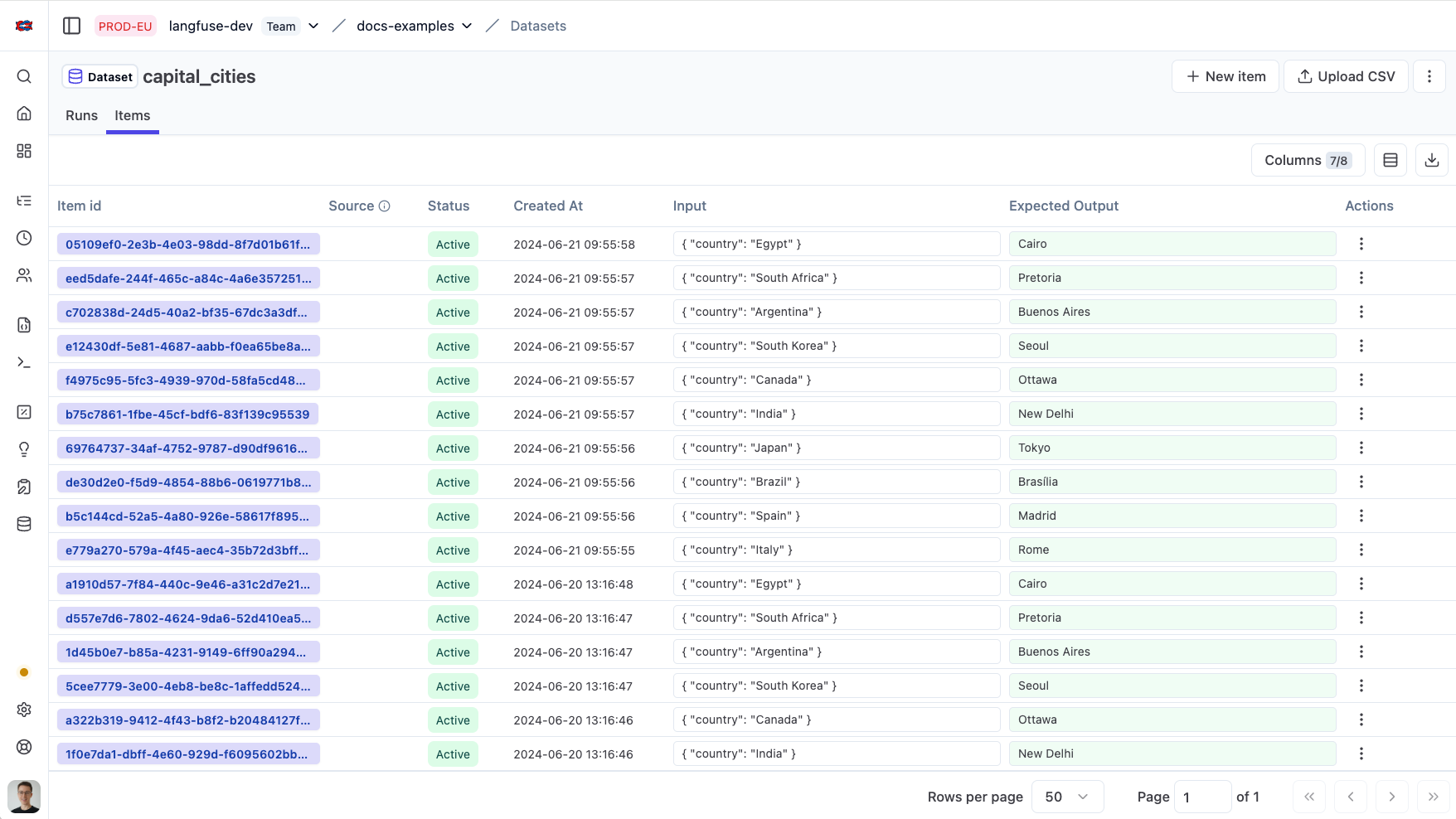
A dataset is a collection of inputs and expected outputs and is used to test your application. [UI-based](/docs/evaluation/experiments/experiments-via-ui), [SDK-based](/docs/evaluation/experiments/experiments-via-sdk), and [OpenTelemetry](/docs/evaluation/experiments/experiments-via-opentelemetry) experiments can all use Langfuse Datasets.
_Langfuse Dataset View_
## Why use datasets?
- Create test cases for your application with real production traces
- Collaboratively create and collect dataset items with your team
- Have a single source of truth for your test data
For guidance on scoping a dataset, picking realistic inputs, and writing expected outputs you can actually evaluate against, read [Designing datasets in the Langfuse Academy](/academy/datasets/designing-great-datasets).
## Get Started
### Creating a dataset
Datasets have a name which is unique within a project.
```python
langfuse.create_dataset(
name="",
# optional description
description="My first dataset",
# optional metadata
metadata={
"author": "Alice",
"date": "2022-01-01",
"type": "benchmark"
}
)
```
_See [Python SDK](/docs/sdk/python/sdk-v3) docs for details on how to initialize the Python client._
```ts
import { LangfuseClient } from "@langfuse/client"
const langfuse = new LangfuseClient()
await langfuse.api.datasets.create({
name: "",
// optional description
description: "My first dataset",
// optional metadata
metadata: {
author: "Alice",
date: "2022-01-01",
type: "benchmark",
},
});
```
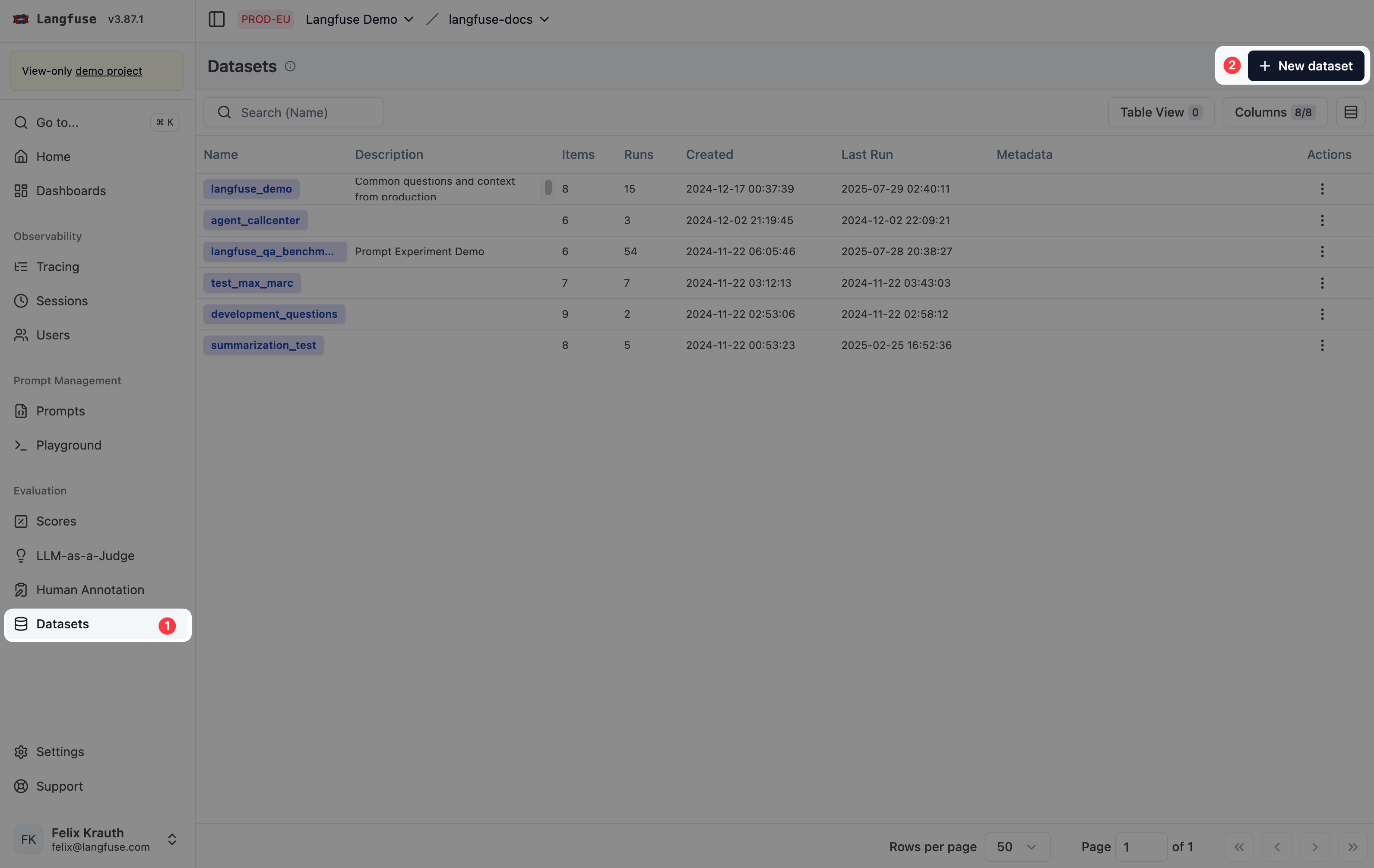
1. **Navigate to** `Your Project` > `Datasets`
2. **Click on** `+ New dataset` to create a new dataset.
### Upload or create new dataset items
Dataset items can be added to a dataset by providing the input and optionally the expected output. If preferred, dataset items can be imported using the CSV uploader in the Langfuse UI.
```python
langfuse.create_dataset_item(
dataset_name="",
# any python object or value, optional
input={
"text": "hello world"
},
# any python object or value, optional
expected_output={
"text": "hello world"
},
# metadata, optional
metadata={
"model": "llama3",
}
)
```
You can also add media to dataset item `input`, `expected_output`, or `metadata`:
```python
from langfuse.media import LangfuseMedia
langfuse.create_dataset_item(
dataset_name="visual-qa",
input={
"question": "What is shown in this image?",
"image": LangfuseMedia(
file_path="./example.jpg",
content_type="image/jpeg",
),
},
expected_output={"label": "invoice"},
)
```
_See [Python SDK](/docs/sdk/python/sdk-v3) docs for details on how to initialize the Python client._
```ts
import { LangfuseClient } from "@langfuse/client";
const langfuse = new LangfuseClient();
await langfuse.dataset.createItem({
datasetName: "",
// any JS object or value
input: {
text: "hello world",
},
// any JS object or value, optional
expectedOutput: {
text: "hello world",
},
// metadata, optional
metadata: {
model: "llama3",
},
});
```
You can also add media to dataset item `input`, `expectedOutput`, or `metadata`:
```ts
import { LangfuseClient, LangfuseMedia } from "@langfuse/client";
import fs from "node:fs";
const langfuse = new LangfuseClient();
await langfuse.dataset.createItem({
datasetName: "visual-qa",
input: {
question: "What is shown in this image?",
image: new LangfuseMedia({
source: "bytes",
contentBytes: fs.readFileSync("./example.jpg"),
contentType: "image/jpeg",
}),
},
expectedOutput: { label: "invoice" },
});
```
_See [JS/TS SDK](/docs/sdk/typescript/guide) docs for details on how to initialize the JS/TS client._
_Dataset uploads are meant to upload the input and expected output. If you already have generated outputs, please use the [Experiments SDK](/docs/evaluation/experiments/experiments-via-sdk)._
Select multiple observations from the **Observations** table, then click **Actions** → **Add to dataset**. You can create a new dataset or add to an existing one, with flexible field mapping options to control how observation data maps to dataset items. See [Batch add observations to datasets](/docs/datasets#batch-add-observations-to-datasets) for details.
## Multi-modal dataset items
Dataset item `input`, `expectedOutput`, and `metadata` fields can include media attachments such as images, audio, video, documents, and other files. You can add media from the Langfuse UI when creating or editing an item, or upload media through the Python and JS/TS SDKs with `LangfuseMedia`.
Multi-modal datasets are supported for SDK-based experiments with Python SDK
`>= 4.10.0` and JS/TS SDK `@langfuse/client >= 5.6.0`. UI-based
experiments do not yet support dataset items with media attachments.
In the UI, open a dataset item and use the attach button, drag-and-drop, or paste files into the `input`, `expectedOutput`, or `metadata` editor.
In the SDKs, wrap media in `LangfuseMedia` before creating the dataset item. The SDK uploads the media, stores a reference in the dataset item, and the Langfuse UI renders the attachment preview.
```python
from langfuse import get_client
from langfuse.media import LangfuseMedia
langfuse = get_client()
langfuse.create_dataset_item(
dataset_name="visual-qa",
input={
"question": "What is shown in this image?",
"image": LangfuseMedia(
file_path="./example.jpg",
content_type="image/jpeg",
),
},
expected_output={"label": "invoice"},
)
dataset = langfuse.get_dataset("visual-qa")
```
```ts
import { LangfuseClient, LangfuseMedia } from "@langfuse/client";
import fs from "node:fs";
const langfuse = new LangfuseClient();
await langfuse.dataset.createItem({
datasetName: "visual-qa",
input: {
question: "What is shown in this image?",
image: new LangfuseMedia({
source: "bytes",
contentBytes: fs.readFileSync("./example.jpg"),
contentType: "image/jpeg",
}),
},
expectedOutput: { label: "invoice" },
});
const dataset = await langfuse.dataset.get("visual-qa");
```
See [Experiments via SDK](/docs/evaluation/experiments/experiments-via-sdk#multimodal-experiments) for using multi-modal items in experiments.
CSV imports are intended for text and structured JSON dataset items. Use the
UI item editor or SDKs for multi-modal dataset items.
## Dataset Folders
Datasets can be organized into virtual folders to group datasets serving similar use cases.
To create a folder, add slashes (`/`) to a dataset name. The UI shows every segment ending with a `/` as a folder automatically.
### Create and fetch a dataset in a folder
Use the Langfuse UI or SDK to create and fetch a dataset in a folder by adding a slash (`/`) to a dataset name.
```python
dataset_name = "evaluation/qa-dataset"
# When creating a dataset, use the full dataset name
langfuse.create_dataset(
name=dataset_name,
)
# When fetching a dataset in a folder, use the full dataset name
langfuse.get_dataset(
name=dataset_name
)
```
This creates and fetches a dataset named `qa-dataset` in a folder named `evaluation`. The full dataset name remains `evaluation/qa-dataset`.
```ts
import { LangfuseClient } from "@langfuse/client";
const langfuse = new LangfuseClient();
const datasetName = "evaluation/qa-dataset";
const encodedName = encodeURIComponent(datasetName); // "evaluation%2Fqa-dataset"
// When creating a dataset, use the full dataset name
await langfuse.dataset.create(datasetName);
// When fetching a dataset in a folder, use the encoded name
await langfuse.dataset.get(encodedName);
```
This creates and fetches a dataset named `qa-dataset` in a folder named `evaluation`. The full dataset name remains `evaluation/qa-dataset`.
In the UI, create a dataset and use a slash (`/`) in the name field to organize it into a folder. Fetch it by navigating to the folder, clicking on the folder name and clicking on the dataset name in the list.
**URL Encoding**: When using dataset names with slashes as path parameters in
the API or JS/TS SDK, use URL encoding. For example, in TypeScript: `encodeURIComponent(name)`.
## Versioning
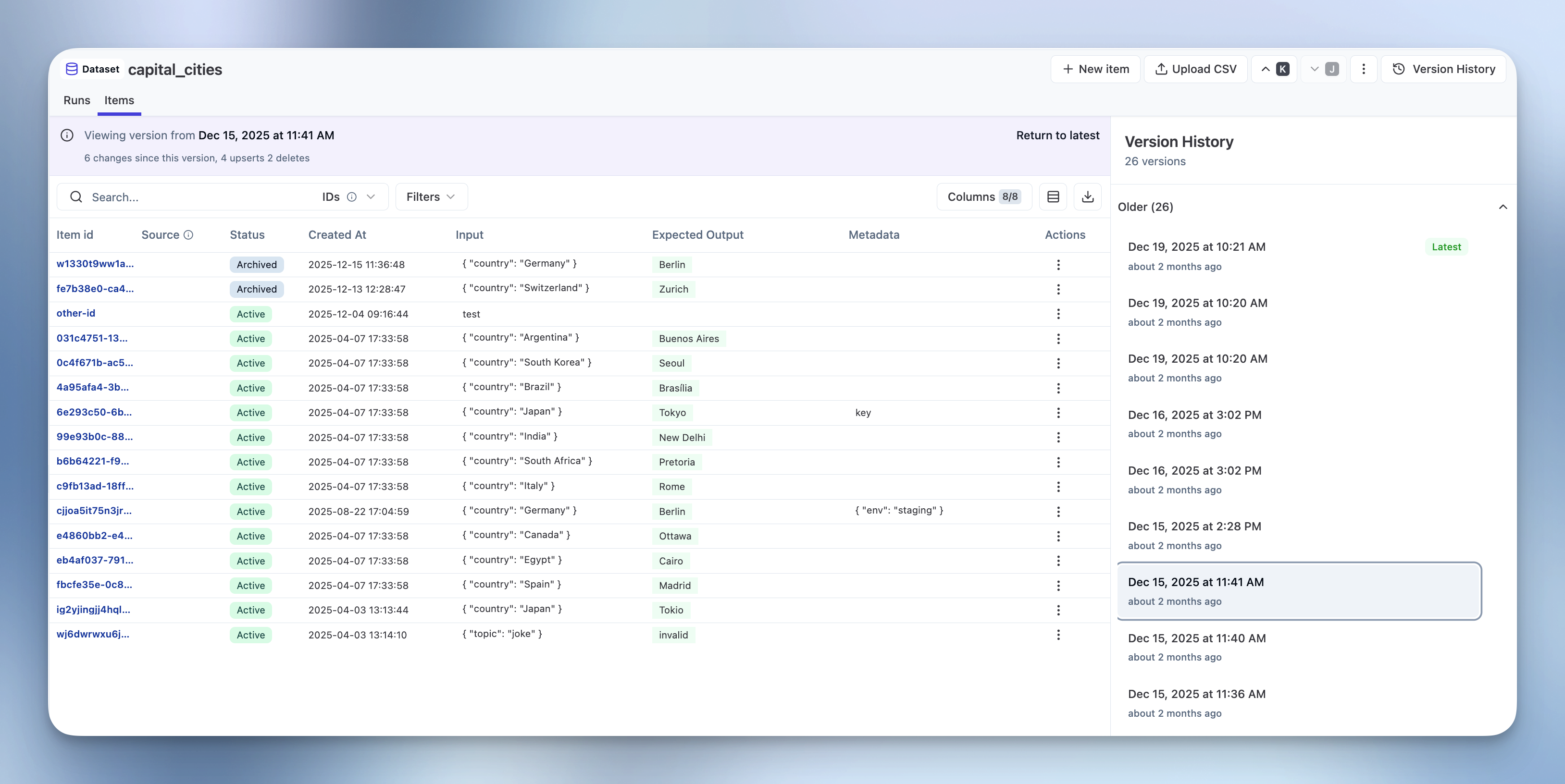
To access Dataset Versions via the Langfuse UI, navigate to: **Datasets** > **Navigate to a specific dataset** > **Select Items Tab**. On this page you can toggle the version view.
Every `add`, `update`, `delete`, or `archive` of dataset items produces a new dataset version. Versions track changes over time using timestamps.
`GET` APIs return the latest version at query time by default. You can fetch datasets at specific version timestamps using the `version` parameter.
Versioning applies to dataset items only, not dataset schemas. Dataset schema changes do not create new versions.
### Fetch dataset at a specific version
You can retrieve a dataset as it existed at a specific point in time by providing a version timestamp. This returns only the items that existed at that timestamp.
```python
from langfuse import get_client
from datetime import datetime, timedelta
langfuse = get_client()
# Capture dataset state as of 2025-12-15 at 06:30:00 UTC
version_timestamp = datetime(2025, 12, 15, 6, 30, 0, tzinfo=timezone.utc)
# Fetch dataset at version timestamp
dataset_at_version = langfuse.get_dataset(
name="my-dataset",
version=version_timestamp
)
# Fetch latest version
dataset_latest = langfuse.get_dataset(name="my-dataset")
```
```typescript
import { LangfuseClient } from "@langfuse/client";
const langfuse = new LangfuseClient();
// Capture the timestamp (use item's createdAt)
const versionTimestamp = new Date("2025-12-15T06:30:00").toISOString();
// Fetch dataset at version timestamp
const datasetAtVersion = await langfuse.dataset.get("my-dataset", {
version: versionTimestamp
});
// Fetch latest version
const datasetLatest = await langfuse.dataset.get("my-dataset");
```
You can view all dataset versions by navigating to **Datasets** → **Select a dataset** → **Items Tab** → Toggle the **Version view**.
### Run experiments on versioned datasets
You can run experiments directly on versioned datasets. This is useful for comparing how your model performs against different dataset versions or reproducing experiment results with the exact dataset state from a specific point in time.
```python
from datetime import timedelta
import time
from langfuse import Langfuse
langfuse = Langfuse()
version_timestamp = datetime(2025, 12, 15, 6, 30, 0, tzinfo=timezone.utc)
# Fetch versioned dataset
versioned_dataset = langfuse.get_dataset("qa-dataset", version=version_timestamp)
# Run experiment on the versioned dataset
def my_llm_application(*, item, **kwargs):
# Your LLM application logic here
# For this example, we'll just return the expected output
return item.expected_output
result = versioned_dataset.run_experiment(
name="Baseline Experiment v1",
description="Running on dataset v1",
task=my_llm_application
)
```
```typescript
import { LangfuseClient } from "@langfuse/client";
const langfuse = new LangfuseClient();
// Capture the version timestamp
const versionTimestamp = new Date("2025-12-15T06:30:00").toISOString();
// Fetch versioned dataset
const versionedDataset = await langfuse.dataset.get("qa-dataset", {
version: versionTimestamp
});
// Run experiment on the versioned dataset
const result = await versionedDataset.runExperiment({
name: "Baseline Experiment v1",
description: "Running on dataset v1",
task: async (item) => {
// Your LLM application logic here
// For this example, we'll just return the expected output
return item.expectedOutput;
}
});
```
In the UI, you can select a specific dataset version when running experiments:
1. Navigate to **Experiments** → **Run Experiment**
2. Select your dataset in the **Dataset Selection** step
3. Choose a version from the **Dataset Version** dropdown
4. The dropdown shows available version timestamps
5. The experiment will run against the dataset state at that specific point in time
6. If no version is selected, the experiment runs against the latest version

This approach ensures reproducibility by allowing you to:
- Re-run experiments on historical dataset versions even after items are updated or deleted
- Compare model performance before and after dataset changes
- Maintain experiment consistency and reproduce exact results from previous runs
- Test improvements against the same baseline dataset version
## Schema Enforcement
Optionally add JSON Schema validation to your datasets to ensure all dataset items conform to a defined structure. This helps maintain data quality, catch errors early, and ensure consistency across your team.
You can define JSON schemas for `input` and/or `expectedOutput` fields when creating or updating a dataset. Once set, all dataset items are automatically validated against these schemas. Valid items are accepted, invalid items are rejected with detailed error messages showing the validation issue.
```python
langfuse.create_dataset(
name="qa-conversations",
input_schema={
"type": "object",
"properties": {
"messages": {
"type": "array",
"items": {
"type": "object",
"properties": {
"role": {"type": "string", "enum": ["user", "assistant", "system"]},
"content": {"type": "string"}
},
"required": ["role", "content"]
}
}
},
"required": ["messages"]
},
expected_output_schema={
"type": "object",
"properties": {"response": {"type": "string"}},
"required": ["response"]
}
)
```
```typescript
await langfuse.createDataset({
name: "qa-conversations",
inputSchema: {
type: "object",
properties: {
messages: {
type: "array",
items: {
type: "object",
properties: {
role: { type: "string", enum: ["user", "assistant", "system"] },
content: { type: "string" }
},
required: ["role", "content"]
}
}
},
required: ["messages"]
},
expectedOutputSchema: {
type: "object",
properties: { response: { type: "string" } },
required: ["response"]
}
});
```
Navigate to **Datasets** → **New Dataset** or edit an existing dataset → Expand **Schema Validation** section → Add your JSON schemas → Click **Save**.
## Create synthetic datasets
Frequently, you want to create synthetic examples to test your application to bootstrap your dataset. LLMs are great at generating these by prompting for common questions/tasks.
To get started have a look at this cookbook for examples on how to generate synthetic datasets:
- [Notebook: Synthetic Datasets](/docs/evaluation/features/synthetic-datasets)
## Create items from production data
A common workflow is to select production traces where the application did not perform as expected. Then you let an expert add the expected output to test new versions of your application on the same data.
```python
langfuse.create_dataset_item(
dataset_name="",
input={ "text": "hello world" },
expected_output={ "text": "hello world" },
# link to a trace
source_trace_id="",
# optional: link to a specific span, event, or generation
source_observation_id=""
)
```
```ts
import { LangfuseClient } from "@langfuse/client";
const langfuse = new LangfuseClient();
await langfuse.dataset.createItem({
datasetName: "",
input: { text: "hello world" },
expectedOutput: { text: "hello world" },
// link to a trace
sourceTraceId: "",
// optional: link to a specific span, event, or generation
sourceObservationId: "",
});
```
In the UI, use `+ Add to dataset` on any observation (span, event, generation) of a production trace.
## Batch add observations to datasets
You can batch add multiple observations to a dataset directly from the observations table. This is useful for quickly building test datasets from production data.
The field mapping system gives you control over how observation data is transformed into dataset items. You can use the entire field as-is (e.g., map the full observation input to the dataset item input), extract specific values using JSON path expressions or build custom objects from multiple fields.
1. Navigate to the **Observations** table
2. Use filters to find relevant observations
3. Select observations using the checkboxes
4. Click **Actions** → **Add to dataset**
5. Choose to create a new dataset or select an existing one
6. Configure field mapping to control how observation data maps to dataset item fields
7. Preview the mapping and confirm
Batch operations run in the background with support for partial success. If some observations fail validation against a dataset schema, valid items are still added and errors are logged for review. You can monitor progress in **Settings** → **Batch Actions**.
## Edit/archive dataset items
You can edit or archive dataset items. Archiving items will remove them from future experiment runs.
You can upsert items by providing the `id` of the item you want to update.
```python
langfuse.create_dataset_item(
dataset_name="",
id="",
# example: update status to "ARCHIVED"
status="ARCHIVED"
)
```
You can upsert items by providing the `id` of the item you want to update.
```ts
import { LangfuseClient } from "@langfuse/client";
const langfuse = new LangfuseClient();
await langfuse.dataset.createItem({
datasetName: "",
id: "",
// example: update status to "ARCHIVED"
status: "ARCHIVED",
});
```
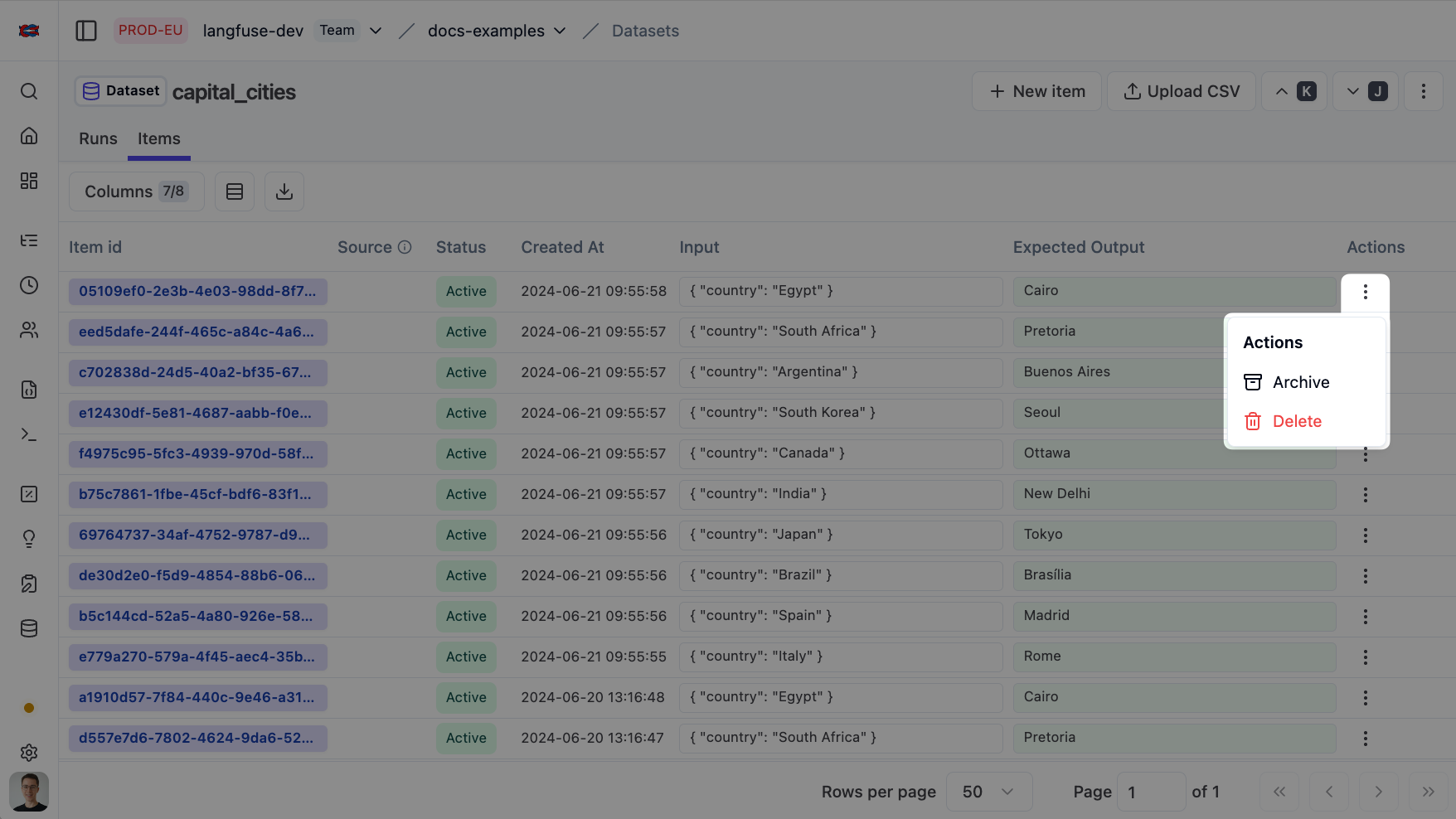
In the UI, you can edit the item by clicking on the item id. To archive or delete the item, click on the dots next to the item and select `Archive` or `Delete`.
## Dataset runs
Once you created a dataset, you can test and evaluate your application based on it.
- [Experiments via SDK](/docs/evaluation/experiments/experiments-via-sdk)
- [Experiments via UI](/docs/evaluation/experiments/experiments-via-ui)
- [Experiments via OpenTelemetry](/docs/evaluation/experiments/experiments-via-opentelemetry)
Learn more about the [Experiments data model](/docs/evaluation/experiments/data-model).
---
## Agent Instructions
This page is part of the [Langfuse](https://langfuse.com) documentation, published as plain Markdown for AI agents. Every page is available as Markdown by appending `.md` to its URL, or by sending an `Accept: text/markdown` header. This page: `https://langfuse.com/docs/evaluation/experiments/datasets.md`.
### Querying these docs
If the answer is not on this page, query the documentation instead of guessing:
- **Semantic search** across all Langfuse docs, returning an answer with the relevant pages and excerpts. Ask a specific, self-contained question:
```bash
curl -sG "https://langfuse.com/api/search-docs" --data-urlencode "query=How do I trace a LangGraph agent?"
```
- **Index of every page**: , with per-section indexes [llms-docs.txt](https://langfuse.com/llms-docs.txt), [llms-integrations.txt](https://langfuse.com/llms-integrations.txt), and [llms-self-hosting.txt](https://langfuse.com/llms-self-hosting.txt).
### Before writing Langfuse code
- **Install the [Langfuse Agent Skill](https://langfuse.com/docs/api-and-data-platform/features/agent-skill).** It encodes Langfuse's own best practices for instrumentation, prompt management, and evaluation, and materially improves results.
- **Read [What does a good trace look like?](https://langfuse.com/docs/observability/best-practices.md)** before instrumenting an application.
- **Verify endpoints, parameters, and response fields** against the [API reference](https://api.reference.langfuse.com) instead of inferring them from code examples.
- **Use the [Langfuse CLI](https://langfuse.com/docs/api-and-data-platform/features/cli)** (`npx langfuse-cli api `) to read or write traces, prompts, datasets, and scores from the terminal.
Found an error in these docs? Please open an issue at .