---
title: Experiments via UI
description: Experiment with different prompt versions and models on a dataset and compare the results side-by-side directly from the Langfuse UI.
---
# Experiments via UI (Prompt Experiments)
You can execute Experiments via UI (also called Prompt Experiments) in the Langfuse UI to test different prompt versions from [Prompt Management](/docs/prompt-management) or language models and compare the results side-by-side.
Optionally, you can use [LLM-as-a-Judge Evaluators](/docs/evaluation/evaluation-methods/llm-as-a-judge) or [code evaluators](/docs/evaluation/evaluation-methods/code-evaluators) to automatically score the responses based on the expected outputs to further analyze the results on an aggregate level.
## Why use Prompt Experiments?
- Quickly test different prompt versions or models
- Structure your prompt testing by using a dataset to test different prompt versions and models
- Quickly iterate on prompts through Prompt Experiments
- Optionally use LLM-as-a-Judge or code evaluators to score the responses based on the expected outputs from the dataset
- Prevent regressions by running tests when making prompt changes
Experiments always run on the latest dataset version at experiment time. Support for running experiments on specific dataset versions will be added shortly.
## Prerequisites
### Create a usable prompt
Create a prompt that you want to test and evaluate. [How to create a prompt?](/docs/prompt-management/get-started)
**A prompt is usable when:** your prompt has variables that match the dataset
item keys in the dataset that will be used for the Experiment. See the
example below.
Example: Prompt Variables & Dataset Item Keys Mapping
**Prompt:**
```bash You are a Langfuse expert. Answer based on:
{{ documentation }}
Question: {{question}}
```
**Dataset Item:**
```json
{
"documentation": "Langfuse is an AI Engineering Platform",
"question": "What is Langfuse?"
}
```
In this example:
- The prompt variable `{{documentation}}` maps to the JSON key `"documentation"`
- The prompt variable `{{question}}` maps to the JSON key `"question"`
- Both keys must exist in the dataset item's input JSON for the experiment to run successfully
Example: Chat Message Placeholder Mapping
In addition to variables, you can also map placeholders in chat message prompts to dataset item keys.
This is useful when the dataset item also contains for example a chat message history to use.
Your chat prompt needs to contain a placeholder with a name. Variables within placeholders are not resolved.
**Chat Prompt:**
Placeholder named: `message_history`
**Dataset Item:**
```json
{
"message_history": [
{
"role": "user",
"content": "What is Langfuse?"
},
{
"role": "assistant",
"content": "Langfuse is a tool for tracking and analyzing the performance of language models."
}
],
"question": "What is Langfuse?"
}
```
In this example:
- The chat prompt placeholder `message_history` maps to the JSON key `"message_history"`.
- The prompt variable `{{question}}` maps to the JSON key `"question"` in a variable not within a placeholder message.
- Both keys must exist in the dataset item's input JSON for the experiment to run successfully
### Create a usable dataset
Create a dataset with the inputs and expected outputs you want to use for your prompt experiments. [How to create a dataset?](/docs/evaluation/dataset-runs/datasets)
**A dataset is usable when:** [1] the dataset items have JSON objects as input
and [2] these objects have JSON keys that match the prompt variables of the
prompt(s) you will use. See the example below.
Example: Prompt Variables & Dataset Item Keys Mapping
**Prompt:**
```bash You are a Langfuse expert. Answer based on:
{{ documentation }}
Question: {{question}}
```
**Dataset Item:**
```json
{
"documentation": "Langfuse is an AI Engineering Platform",
"question": "What is Langfuse?"
}
```
In this example:
- The prompt variable `{{documentation}}` maps to the JSON key `"documentation"`
- The prompt variable `{{question}}` maps to the JSON key `"question"`
- Both keys must exist in the dataset item's input JSON for the experiment to run successfully
### Configure LLM connection
As your prompt will be executed for each dataset item, you need to configure an LLM connection in the project settings. [How to configure an LLM connection?](/docs/administration/llm-connection)
### Optional: Set up evaluators
You can set up an [LLM-as-a-judge evaluator](/docs/evaluation/evaluation-methods/llm-as-a-judge) to score semantic criteria or a [code evaluator](/docs/evaluation/evaluation-methods/code-evaluators) for deterministic checks. Make sure to target experiments and filter for the dataset you want to use.
## Trigger an Experiment via UI (Prompt Experiment)
### Navigate to the dataset
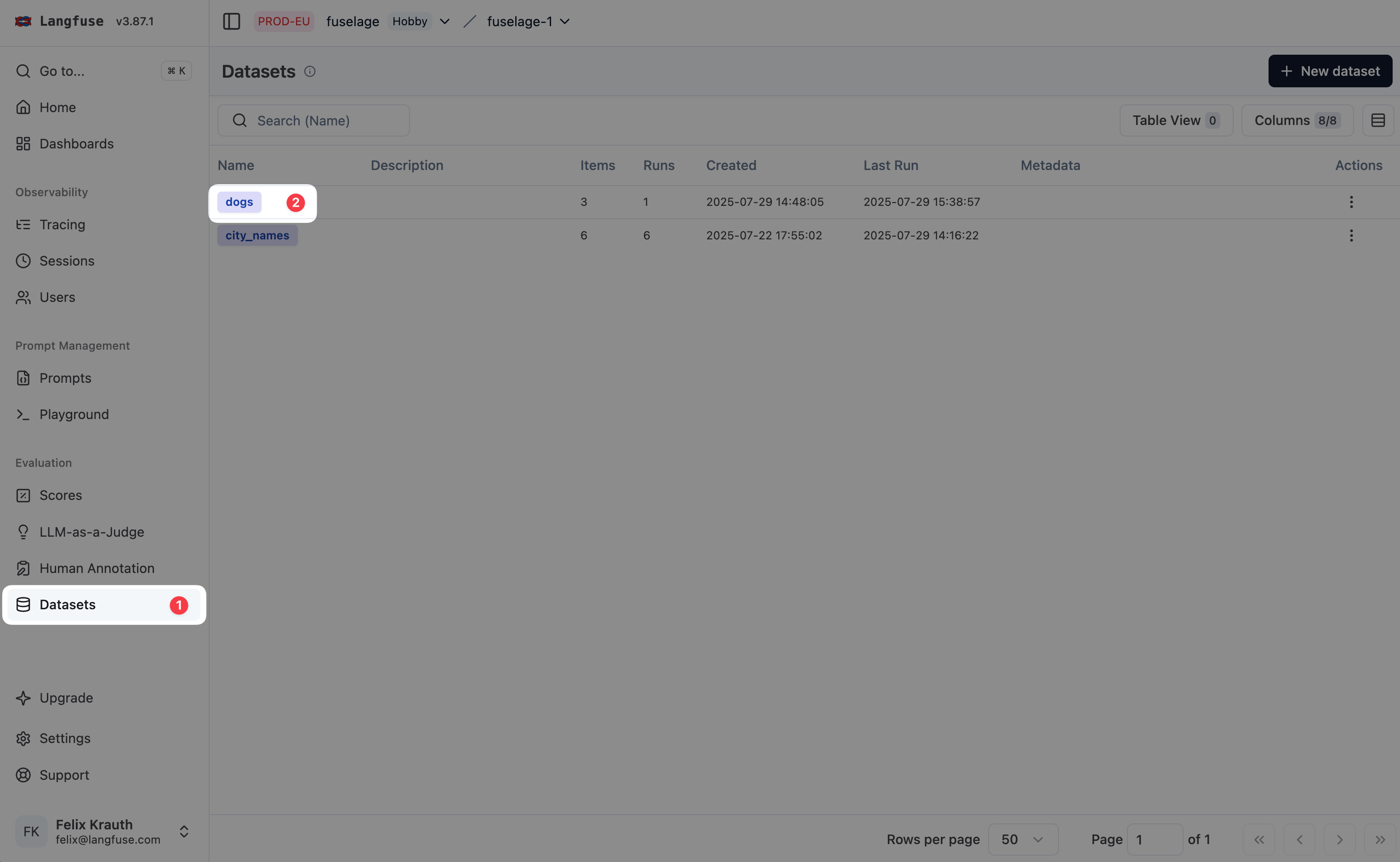
Experiments are currently started from the detail page of a dataset.
- **Navigate to** `Your Project` > `Datasets`
- **Click on** the dataset you want to start an Experiment for
### Open the setup page
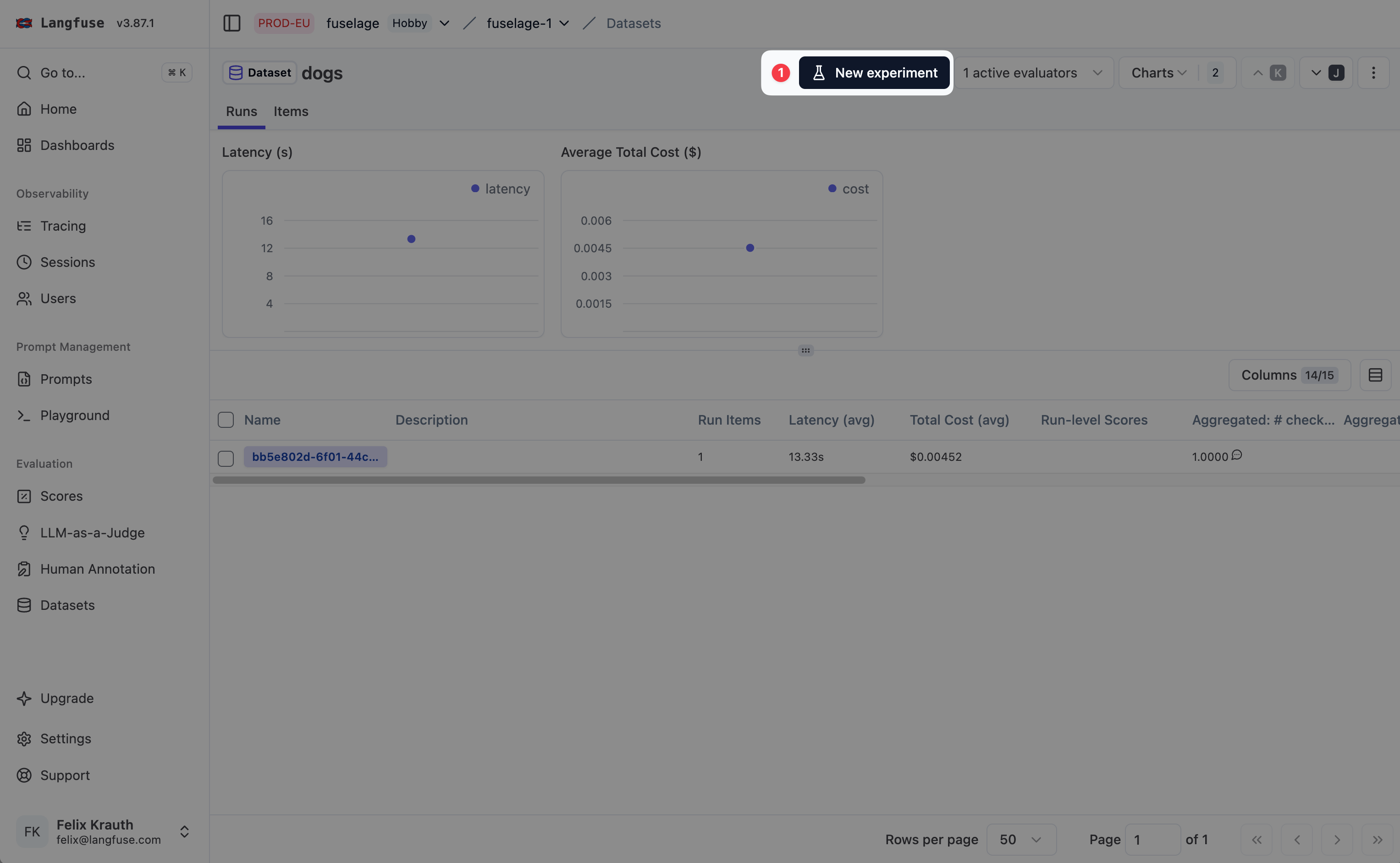
**Click on** `Start Experiment` to open the setup page
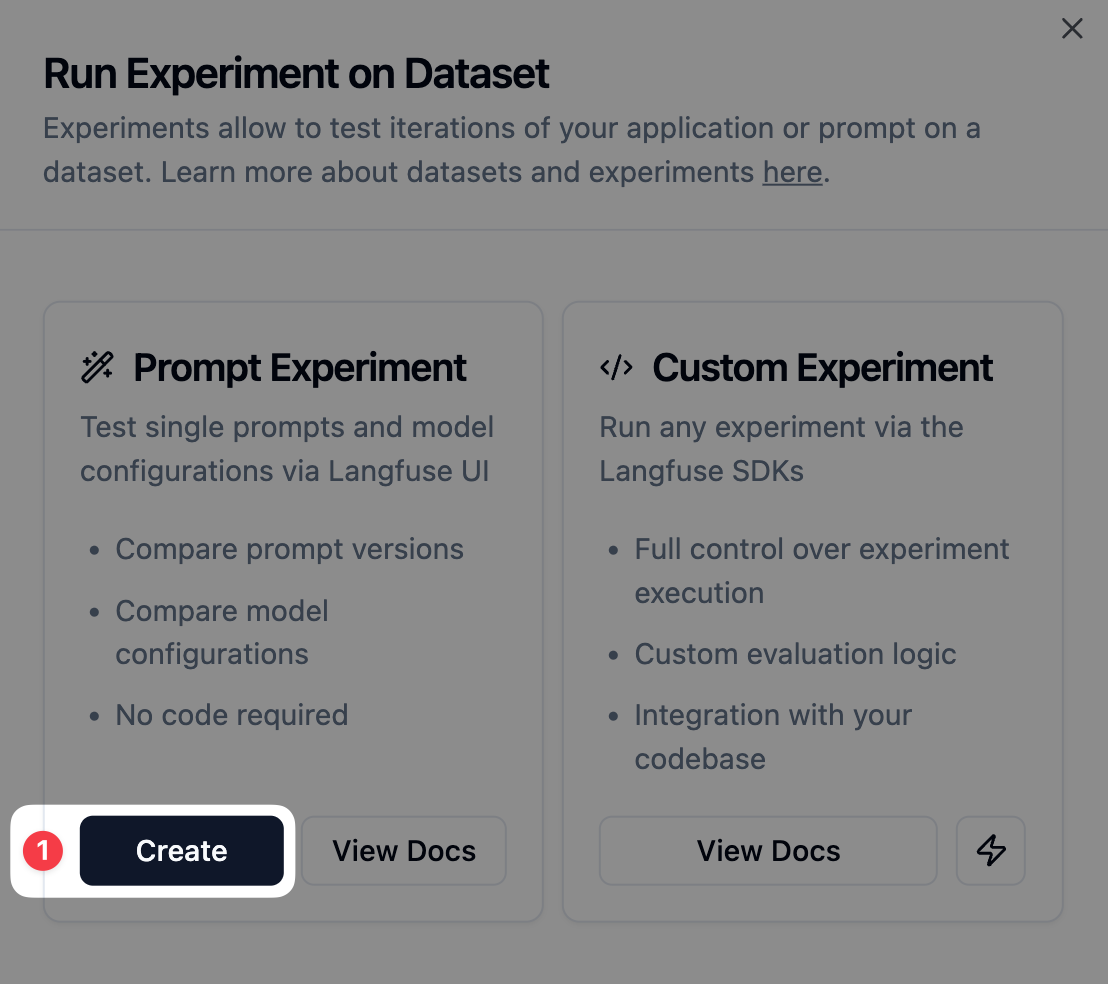
**Click on** `Create` below `prompt Experiment`
### Configure the Experiment
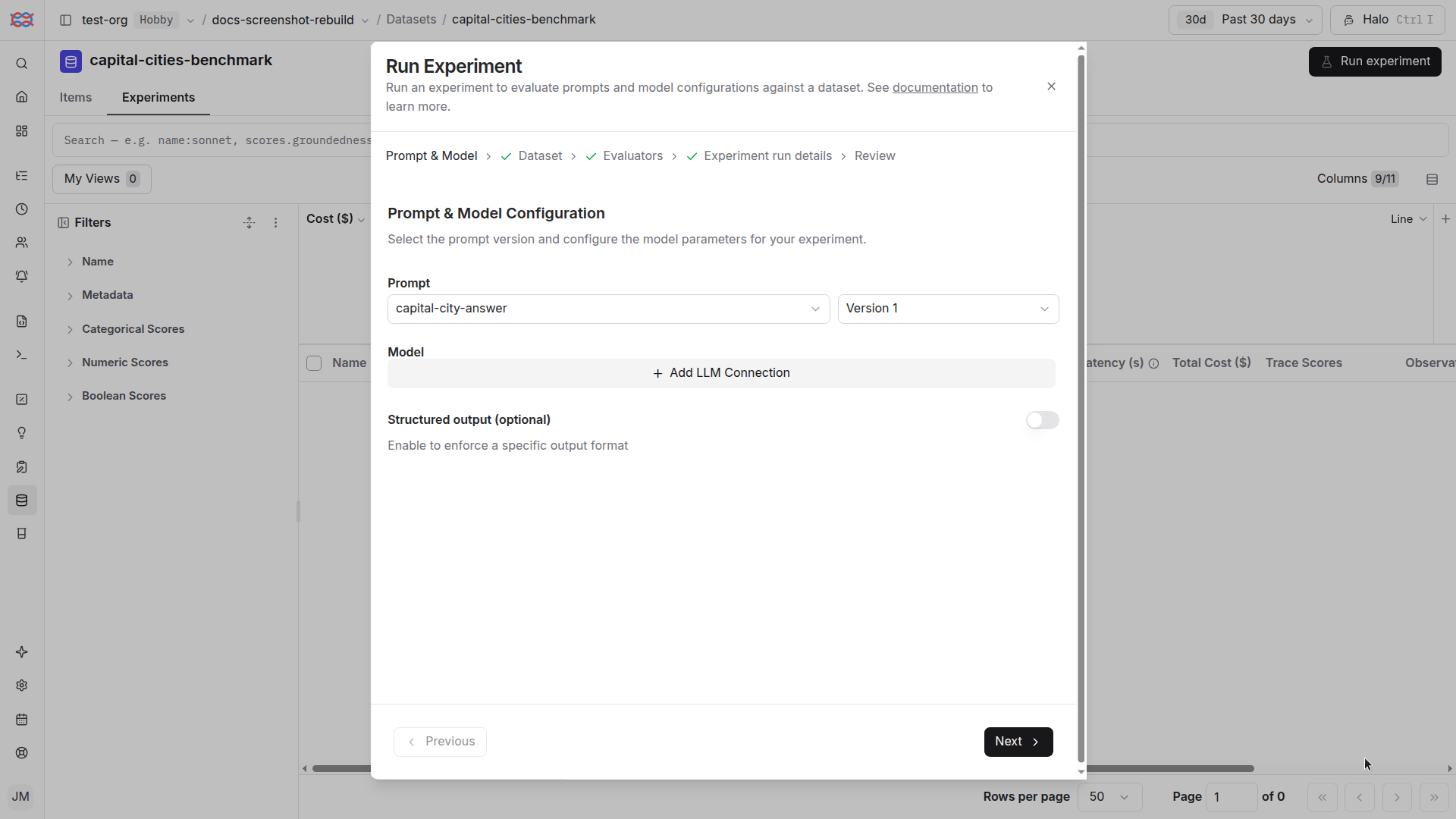
1. **Set** an Experiment name
2. **Select** the prompt you want to use
- If you only have one piece of dynamic content, we recommend a chat prompt with a static system prompt and a dynamic user message (e.g., full user message as a variable). This ensures you can map your dynamic content as the user message.
- If you have multiple pieces of dynamic content, we recommend creating a variable in the prompt for each piece of dynamic content. This ensures you can map your dynamic content to the corresponding variable.
3. **Set up or select** the LLM connection you want to use
4. **Select** the dataset you want to use
5. **Optionally configure structured output** - Toggle on to enforce a JSON schema response format
- Select an existing schema from your project or create a new one
- Schemas can be created and saved in the [Playground](/docs/playground) and reused here
- View/edit schemas using the eye icon next to the schema selector
6. **Optionally select** the evaluator you want to use
7. **Click on** `Create` to trigger the Experiment
**Structured output** ensures that LLM responses conform to a specific JSON
schema. This is useful when you need consistent, parseable outputs for
evaluation or downstream processing. The same schemas you define in the
Playground are available for use in experiments.
This will trigger the Experiment and you will be redirected to the Experiments page. The run might take a few seconds or minutes to complete depending on the prompt complexity and dataset size.
### Compare runs
After each Experiment run, you can check the aggregated score in the Experiments table and compare results side-by-side. See our guide on [Systematic Evaluation of AI Agents](/blog/2025-11-06-experiment-interpretation) for details on regression analysis and multi-candidate comparison.
## Related Resources
- If you need to evaluate full application or agent logic (including custom runtime configuration) instead of prompt-only runs, use [Experiments via SDK](/docs/evaluation/experiments/experiments-via-sdk). You can also trigger an SDK-based evaluation run via the UI with [webhooks](/docs/evaluation/experiments/experiments-via-sdk#configure-webhook).
## GitHub Discussions
---
## Agent Instructions
This page is part of the [Langfuse](https://langfuse.com) documentation, published as plain Markdown for AI agents. Every page is available as Markdown by appending `.md` to its URL, or by sending an `Accept: text/markdown` header. This page: `https://langfuse.com/docs/evaluation/experiments/experiments-via-ui.md`.
### Querying these docs
If the answer is not on this page, query the documentation instead of guessing:
- **Semantic search** across all Langfuse docs, returning an answer with the relevant pages and excerpts. Ask a specific, self-contained question:
```bash
curl -sG "https://langfuse.com/api/search-docs" --data-urlencode "query=How do I trace a LangGraph agent?"
```
- **Index of every page**: , with per-section indexes [llms-docs.txt](https://langfuse.com/llms-docs.txt), [llms-integrations.txt](https://langfuse.com/llms-integrations.txt), and [llms-self-hosting.txt](https://langfuse.com/llms-self-hosting.txt).
### Before writing Langfuse code
- **Install the [Langfuse Agent Skill](https://langfuse.com/docs/api-and-data-platform/features/agent-skill).** It encodes Langfuse's own best practices for instrumentation, prompt management, and evaluation, and materially improves results.
- **Read [What does a good trace look like?](https://langfuse.com/docs/observability/best-practices.md)** before instrumenting an application.
- **Verify endpoints, parameters, and response fields** against the [API reference](https://api.reference.langfuse.com) instead of inferring them from code examples.
- **Use the [Langfuse CLI](https://langfuse.com/docs/api-and-data-platform/features/cli)** (`npx langfuse-cli api `) to read or write traces, prompts, datasets, and scores from the terminal.
Found an error in these docs? Please open an issue at .