---
title: Config
sidebarTitle: Config
description: The prompt config in Langfuse is an optional JSON object attached to each prompt that stores structured data such as model parameters (like model name, temperature), function/tool parameters, or JSON schemas.
---
# Prompt Config
The prompt `config` in Langfuse is an **optional arbitrary JSON object** attached to each prompt, that can be used by code executing the LLM call. Common use cases include:
- [storing model parameters](#using-the-config) (`model`, `temperature`, `max_tokens`)
- [storing structured output schemas](#structured-outputs) (`response_format`)
- [storing function/tool definitions](#function-calling) (`tools`, `tool_choice`)
Because the config is **versioned together with the prompt**, you can manage all parameters in one place. This makes it easy to switch models, update schemas, or tune behavior without touching your application code.
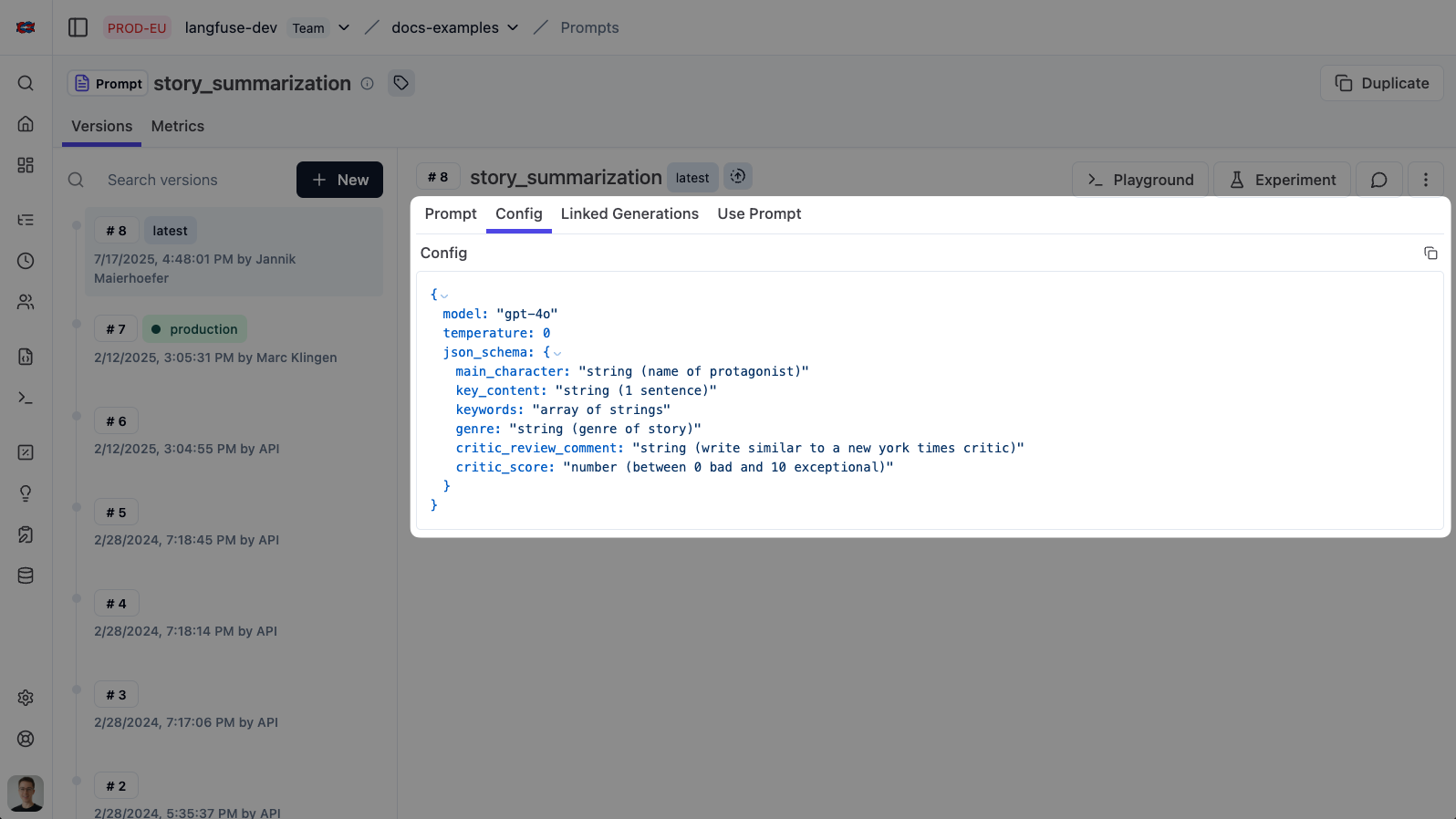
## Setting the config
Setting the config can be done both via the Langfuse prompt UI and via the SDKs.
To add or edit a config for your prompt:
1. Navigate to **Prompt Management** in the Langfuse UI
2. Select or create a prompt
3. In the prompt editor, find the **Config** field (JSON editor)
4. Enter your config as a valid JSON object
5. Save the prompt — the config is now versioned with this prompt version
Pass the `config` parameter when creating or updating a prompt:
```python
from langfuse import get_client
langfuse = get_client()
# example config with a model and temperature
config = {
"model": "gpt-4o",
"temperature": 0
}
langfuse.create_prompt(
name="invoice-extractor",
type="chat",
prompt=[
{
"role": "system",
"content": "Extract structured data from invoices."
}
],
config=config
)
```
Pass the `config` parameter when creating or updating a prompt:
```typescript
import { LangfuseClient } from "@langfuse/client";
const langfuse = new LangfuseClient();
// example config with a model and temperature
const config = {
model: "gpt-4o",
temperature: 0
}
await langfuse.prompt.create({
name: "invoice-extractor",
type: "chat",
prompt: [
{ role: "system", content: "Extract structured data from invoices." }
],
config: config
});
```
You can test your prompt with its config directly in the [Playground](/docs/prompt-management/features/playground).
## Using the config [#using-the-config]
The example below retrieves the AI model and temperature from the prompt config.
After fetching a prompt, access the config via the `config` property and pass the values to your LLM call.
This example uses the [Langfuse OpenAI integration](/docs/integrations/openai/python/get-started) for tracing, but this is optional.
You can use any method to call your LLM (e.g., OpenAI SDK directly, other providers, etc.).
```python
from langfuse import get_client
# Initialize Langfuse OpenAI client for this example.
from langfuse.openai import OpenAI
client = OpenAI()
langfuse = get_client()
# Fetch prompt
prompt = langfuse.get_prompt("invoice-extractor")
# Access config values
cfg = prompt.config
model = cfg.get("model")
temperature = cfg.get("temperature")
# Use in your LLM call
client.chat.completions.create(
model=model,
temperature=temperature,
messages=prompt.prompt
)
```
This example uses the [Langfuse OpenAI integration](/docs/integrations/openai/js/get-started) for tracing, but this is optional.
You can use any method to call your LLM (e.g., OpenAI SDK directly, other providers, etc.) and still use the config.
```typescript
import { LangfuseClient } from "@langfuse/client";
// Initialize OpenAI client for this example.
import OpenAI from "openai";
import { observeOpenAI } from "@langfuse/openai";
const client = observeOpenAI(new OpenAI());
const langfuse = new LangfuseClient();
// Fetch prompt
const prompt = await langfuse.prompt.get("invoice-extractor");
// Access config values
const cfg = prompt.config;
const model = cfg.model;
const temperature = cfg.temperature;
// Use in your LLM call
client.chat.completions.create({
model,
temperature,
messages: prompt.prompt
});
```
## Example use cases
### Structured Outputs [#structured-outputs]
When you need your LLM to return data in a specific JSON format, store the schema in your prompt config. This keeps the schema versioned alongside your prompt and lets you update it without code changes.
**Best practice:** Use `response_format` with `type: "json_schema"` and `strict: true` to enforce the schema. This ensures the model's output exactly matches your expected structure. If you're using Pydantic models, convert them with `type_to_response_format_param` — see the [OpenAI Structured Outputs guide](/docs/integrations/openai/python/structured-outputs).
```python
from langfuse import get_client
from langfuse.openai import OpenAI
langfuse = get_client()
client = OpenAI()
# Fetch prompt with config containing response_format
prompt = langfuse.get_prompt("invoice-extractor")
system_message = prompt.compile()
# Extract parameters from config
cfg = prompt.config
# Example config:
# {
# "response_format": {
# "type": "json_schema",
# "json_schema": {
# "name": "invoice_schema",
# "schema": {
# "type": "object",
# "properties": {
# "invoice_number": { "type": "string" },
# "total": { "type": "number" }
# },
# "required": ["invoice_number", "total"],
# "additionalProperties": false
# },
# "strict": true
# }
# }
# }
response_format = cfg.get("response_format")
res = client.chat.completions.create(
model="gpt-4o",
messages=[
{"role": "system", "content": system_message},
{"role": "user", "content": "Extract invoice number and total from: ..."},
],
response_format=response_format,
langfuse_prompt=prompt, # Links this generation to the prompt version in Langfuse
)
# Response is guaranteed to match your schema
content = res.choices[0].message.content
```
### Function Calling [#function-calling]
For agents and tool-using applications, store your function definitions in the prompt config. This allows you to version and update your available tools alongside your prompts.
**Best practice:** Store `tools` (function definitions with JSON Schema parameters) and `tool_choice` in your config. This keeps your function signatures versioned and lets you add, modify, or remove tools without deploying code changes.
```python
from langfuse import get_client
from langfuse.openai import OpenAI
langfuse = get_client()
client = OpenAI()
# Fetch prompt with config containing tools
prompt = langfuse.get_prompt("weather-agent")
system_message = prompt.compile()
# Extract parameters from config
cfg = prompt.config
# Example config:
# {
# "tools": [
# {
# "type": "function",
# "function": {
# "name": "get_current_weather",
# "description": "Get the current weather in a given location",
# "parameters": {
# "type": "object",
# "properties": {
# "location": { "type": "string", "description": "City and country" },
# "unit": { "type": "string", "enum": ["celsius", "fahrenheit"] }
# },
# "required": ["location"],
# "additionalProperties": false
# }
# }
# }
# ],
# "tool_choice": { "type": "auto" }
# }
tools = cfg.get("tools", [])
tool_choice = cfg.get("tool_choice")
res = client.chat.completions.create(
model="gpt-4o",
messages=[
{"role": "system", "content": system_message},
{"role": "user", "content": "What's the weather in Berlin?"},
],
tools=tools,
tool_choice=tool_choice,
langfuse_prompt=prompt, # Links this generation to the prompt version in Langfuse
)
```
For complete end-to-end examples, see the [OpenAI Functions cookbook](/guides/cookbook/prompt_management_openai_functions) and the [Structured Outputs docs](/integrations/model-providers/openai-py#structured-output).
---
## Agent Instructions
This page is part of the [Langfuse](https://langfuse.com) documentation, published as plain Markdown for AI agents. Every page is available as Markdown by appending `.md` to its URL, or by sending an `Accept: text/markdown` header. This page: `https://langfuse.com/docs/prompt-management/features/config.md`.
### Querying these docs
If the answer is not on this page, query the documentation instead of guessing:
- **Semantic search** across all Langfuse docs, returning an answer with the relevant pages and excerpts. Ask a specific, self-contained question:
```bash
curl -sG "https://langfuse.com/api/search-docs" --data-urlencode "query=How do I trace a LangGraph agent?"
```
- **Index of every page**: , with per-section indexes [llms-docs.txt](https://langfuse.com/llms-docs.txt), [llms-integrations.txt](https://langfuse.com/llms-integrations.txt), and [llms-self-hosting.txt](https://langfuse.com/llms-self-hosting.txt).
### Before writing Langfuse code
- **Install the [Langfuse Agent Skill](https://langfuse.com/docs/api-and-data-platform/features/agent-skill).** It encodes Langfuse's own best practices for instrumentation, prompt management, and evaluation, and materially improves results.
- **Read [What does a good trace look like?](https://langfuse.com/docs/observability/best-practices.md)** before instrumenting an application.
- **Verify endpoints, parameters, and response fields** against the [API reference](https://api.reference.langfuse.com) instead of inferring them from code examples.
- **Use the [Langfuse CLI](https://langfuse.com/docs/api-and-data-platform/features/cli)** (`npx langfuse-cli api `) to read or write traces, prompts, datasets, and scores from the terminal.
Found an error in these docs? Please open an issue at .