---
source: ⚠️ Jupyter Notebook
title: Integrate Portkey LLM Gateway with Langfuse
sidebarTitle: Portkey
logo: /images/integrations/portkey_icon.svg
description: Guide on using Portkey's AI gateway to access 250+ LLM models with Langfuse via the OpenAI SDK.
category: Integrations
---
# Observability for Portkey LLM Gateway with Langfuse
This guide shows you how to integrate Portkey's AI gateway with Langfuse. Portkey's API endpoints are fully [compatible](https://portkey.ai/docs/api-reference/inference-api/introduction) with the OpenAI SDK, allowing you to trace and monitor your AI applications seamlessly.
> **What is Portkey?** [Portkey](https://portkey.ai/) is an AI gateway that provides a unified interface to interact with 250+ AI models, offering advanced tools for control, visibility, and security in your Generative AI apps.
> **What is Langfuse?** [Langfuse](https://langfuse.com) is an open source AI engineering platform that helps teams trace LLM calls, monitor performance, and debug issues in their AI applications.
## Step 1: Install Dependencies
```python
%pip install openai langfuse portkey_ai
```
## Step 2: Set Up Environment Variables
Next, set up your Langfuse API keys. You can get these keys by signing up for a free [Langfuse Cloud](https://langfuse.com/cloud) account or by [self-hosting Langfuse](https://langfuse.com/self-hosting). These environment variables are essential for the Langfuse client to authenticate and send data to your Langfuse project.
```python
import os
# Get keys for your project from the project settings page: https://cloud.langfuse.com
os.environ.setdefault("LANGFUSE_PUBLIC_KEY", "pk-lf-...");
os.environ.setdefault("LANGFUSE_SECRET_KEY", "sk-lf-...");
os.environ.setdefault("LANGFUSE_BASE_URL", "https://cloud.langfuse.com"); # 🇪🇺 EU region
# Other Langfuse data regions include 🇺🇸 US: https://us.cloud.langfuse.com, 🇯🇵 Japan: https://jp.cloud.langfuse.com and ⚕️ HIPAA: https://hipaa.cloud.langfuse.com
```
```python
from langfuse import get_client
get_client().auth_check()
```
True
## Step 3: Use Langfuse OpenAI Drop-in Replacement
Next, you can use Langfuse’s OpenAI-compatible client (from langfuse.openai import OpenAI) to trace all requests sent through the Portkey gateway. For detailed setup instructions on the LLM gateway and virtual LLM keys, refer to the [Portkey documentation](https://portkey.ai/docs/product/ai-gateway).
```python
from langfuse.openai import OpenAI
from portkey_ai import createHeaders, PORTKEY_GATEWAY_URL
client = OpenAI(
api_key="xxx", #Since we are using a virtual key we do not need this
base_url = PORTKEY_GATEWAY_URL,
default_headers = createHeaders(
api_key = "***",
virtual_key = "***"
)
)
```
## Step 4: Run an Example
```python
response = client.chat.completions.create(
model="gpt-4o", # Or any model supported by your chosen provider
messages=[
{"role": "system", "content": "You are a helpful assistant."},
{"role": "user", "content": "What are the benefits of using an AI gateway?"},
],
)
print(response.choices[0].message.content)
# Flush via global client
langfuse = get_client()
langfuse.flush()
```
## Step 5: See Traces in Langfuse
After running the example, log in to Langfuse to view the detailed traces, including:
- Request parameters
- Response content
- Token usage and latency metrics
- LLM model information through Portkey gateway
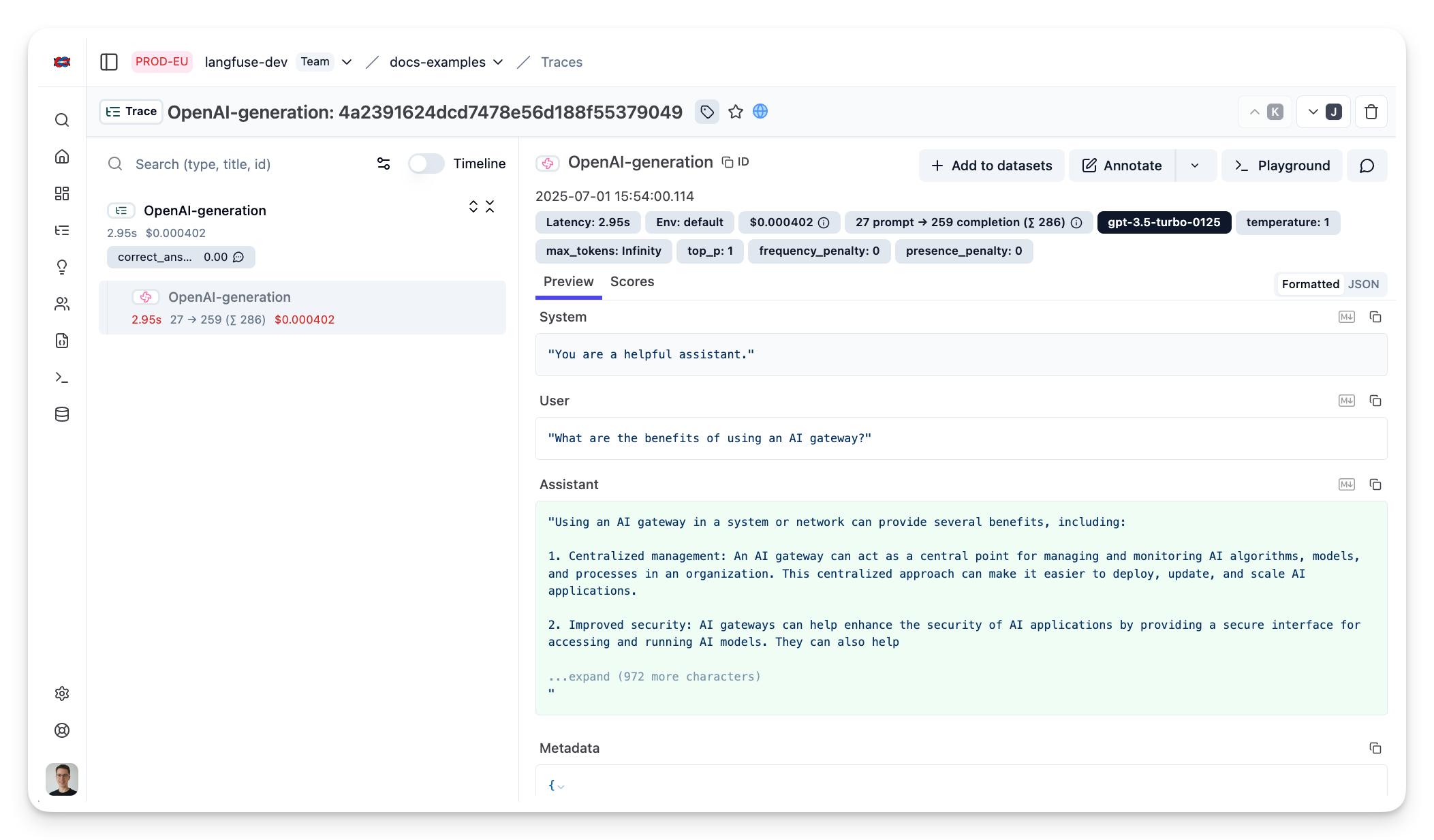
_[Public example trace link in Langfuse](https://cloud.langfuse.com/project/cloramnkj0002jz088vzn1ja4/traces/4a2391624dcd7478e56d188f55379049?timestamp=2025-07-01T13:54:00.114Z&display=details)_
## Interoperability with the Python SDK
You can use this integration together with the Langfuse [SDKs](/docs/observability/sdk/overview) to add additional attributes to the observation.
The [`@observe()` decorator](/docs/observability/sdk/instrumentation#custom-instrumentation) provides a convenient way to automatically wrap your instrumented code and add additional attributes to the observation.
```python
from langfuse import observe, propagate_attributes, get_client
langfuse = get_client()
@observe()
def my_llm_pipeline(input):
# Add additional attributes (user_id, session_id, metadata, version, tags) to all spans created within this execution scope
with propagate_attributes(
user_id="user_123",
session_id="session_abc",
tags=["agent", "my-observation"],
metadata={"email": "user@langfuse.com"},
version="1.0.0"
):
# YOUR APPLICATION CODE HERE
result = call_llm(input)
return result
# Run the function
my_llm_pipeline("Hi")
```
Learn more about using the Decorator in the [Langfuse SDK instrumentation docs](/docs/observability/sdk/instrumentation#custom-instrumentation).
The [Context Manager](/docs/observability/sdk/instrumentation#custom-instrumentation) allows you to wrap your instrumented code using context managers (with `with` statements), which allows you to add additional attributes to the observation.
```python
from langfuse import get_client, propagate_attributes
langfuse = get_client()
with langfuse.start_as_current_observation(
as_type="span",
name="my-observation",
trace_context={"trace_id": "abcdef1234567890abcdef1234567890"}, # Must be 32 hex chars
) as observation:
# Add additional attributes (user_id, session_id, metadata, version, tags)
# to all observations created within this execution scope
with propagate_attributes(
user_id="user_123",
session_id="session_abc",
metadata={"experiment": "variant_a", "env": "prod"},
version="1.0",
):
# YOUR APPLICATION CODE HERE
result = call_llm("some input")
# Flush events in short-lived applications
langfuse.flush()
```
Learn more about using the Context Manager in the [Langfuse SDK instrumentation docs](/docs/observability/sdk/instrumentation#custom-instrumentation).
## Troubleshooting
No observations appearing
First, enable [debug mode](/docs/observability/sdk/advanced-features#logging--debugging) in the Python SDK:
```bash
export LANGFUSE_DEBUG="True"
```
Then run your application and check the debug logs:
- **OTel observations appear in the logs:** Your application is instrumented correctly but observations are not reaching Langfuse. To resolve this:
1. Call [`langfuse.flush()`](/docs/observability/sdk/instrumentation#client-lifecycle--flushing) at the end of your application to ensure all observations are exported.
2. Verify that you are using the correct API keys and base URL.
- **No OTel spans in the logs:** Your application is not instrumented correctly. Make sure the instrumentation runs before your application code.
Unwanted observations in Langfuse
The Langfuse SDK is based on OpenTelemetry. Other libraries in your application may emit OTel spans that are not relevant to you. These still count toward your [billable units](/docs/administration/billable-units), so you should filter them out. See [Unwanted spans in Langfuse](/faq/all/unwanted-http-database-spans) for details.
Missing attributes
Some attributes may be stored in the metadata object of the observation rather than being mapped to the Langfuse data model. If a mapping or integration does not work as expected, please [raise an issue on GitHub](/issues).
## Next Steps
Once you have instrumented your code, you can manage, evaluate and debug your application:
- [Manage prompts in Langfuse](/docs/prompts/get-started)
- [Add evaluation scores](/docs/evaluation/features/evaluation-methods/custom-scores)
- [Run LLM-as-a-judge Evaluators](/docs/scores/model-based-evals)
- [Create datasets](/docs/datasets/overview)
- [Create custom dashboards](/docs/analytics/custom-dashboards)
- [Test queries in the Playground](/docs/playground)
---
## Agent Instructions
This page is part of the [Langfuse](https://langfuse.com) documentation, published as plain Markdown for AI agents. Every page is available as Markdown by appending `.md` to its URL, or by sending an `Accept: text/markdown` header. This page: `https://langfuse.com/integrations/gateways/portkey.md`.
### Querying these docs
If the answer is not on this page, query the documentation instead of guessing:
- **Semantic search** across all Langfuse docs, returning an answer with the relevant pages and excerpts. Ask a specific, self-contained question:
```bash
curl -sG "https://langfuse.com/api/search-docs" --data-urlencode "query=How do I trace a LangGraph agent?"
```
- **Index of every page**: , with per-section indexes [llms-docs.txt](https://langfuse.com/llms-docs.txt), [llms-integrations.txt](https://langfuse.com/llms-integrations.txt), and [llms-self-hosting.txt](https://langfuse.com/llms-self-hosting.txt).
### Before writing Langfuse code
- **Install the [Langfuse Agent Skill](https://langfuse.com/docs/api-and-data-platform/features/agent-skill).** It encodes Langfuse's own best practices for instrumentation, prompt management, and evaluation, and materially improves results.
- **Read [What does a good trace look like?](https://langfuse.com/docs/observability/best-practices.md)** before instrumenting an application.
- **Verify endpoints, parameters, and response fields** against the [API reference](https://api.reference.langfuse.com) instead of inferring them from code examples.
- **Use the [Langfuse CLI](https://langfuse.com/docs/api-and-data-platform/features/cli)** (`npx langfuse-cli api `) to read or write traces, prompts, datasets, and scores from the terminal.
Found an error in these docs? Please open an issue at .