---
title: Slack Integration with Langfuse
sidebarTitle: Slack
logo: /images/integrations/slack_icon.svg
description: Send Langfuse prompt update and alert notifications to Slack channels.
---
# Slack Integration
Send Langfuse notifications to Slack so your team can see prompt changes and alerts in the channels where you already coordinate releases, incidents, and product updates.
## What the Slack app does
The Langfuse Slack app posts selected Langfuse events into Slack channels. Teams use it to keep prompt changes visible during development and to route alerts into operational channels.
You need a Langfuse account and project to use the Slack integration. Slack notifications are configured per Langfuse project.
- [**Prompt notifications**](/docs/prompt-management/features/webhooks-slack-integrations): Get notified when prompt versions are created, updated, or deleted. Use this to review production prompt changes, coordinate releases, and audit prompt lifecycle events.
- [**Alerts**](/docs/observability/features/alerts): Send threshold breach and recovery notifications for your Langfuse alerts to Slack. Use this to surface latency, cost, score, or quality changes before they affect users.
## Get started
### Open the Slack integration
Navigate to your Langfuse project settings, open the **Integrations** section, and choose **Slack**.

### Connect Slack
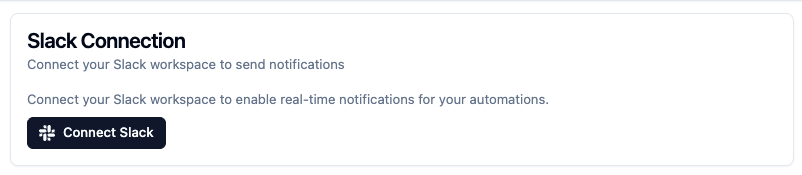
Click **Connect Slack** to start the Slack OAuth flow.
### Add Langfuse to Slack
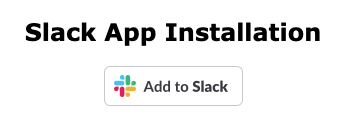
Click **Add to Slack** to continue to the Slack permissions screen.
### Authorize Langfuse in Slack
Authorize Langfuse for your Slack workspace.
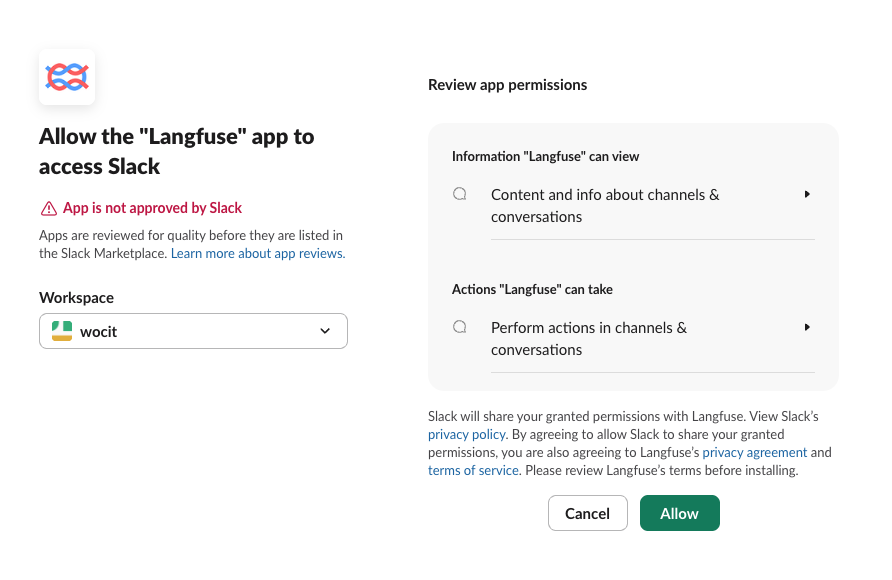
After installation, Langfuse redirects you back to the app.
### Test the integration
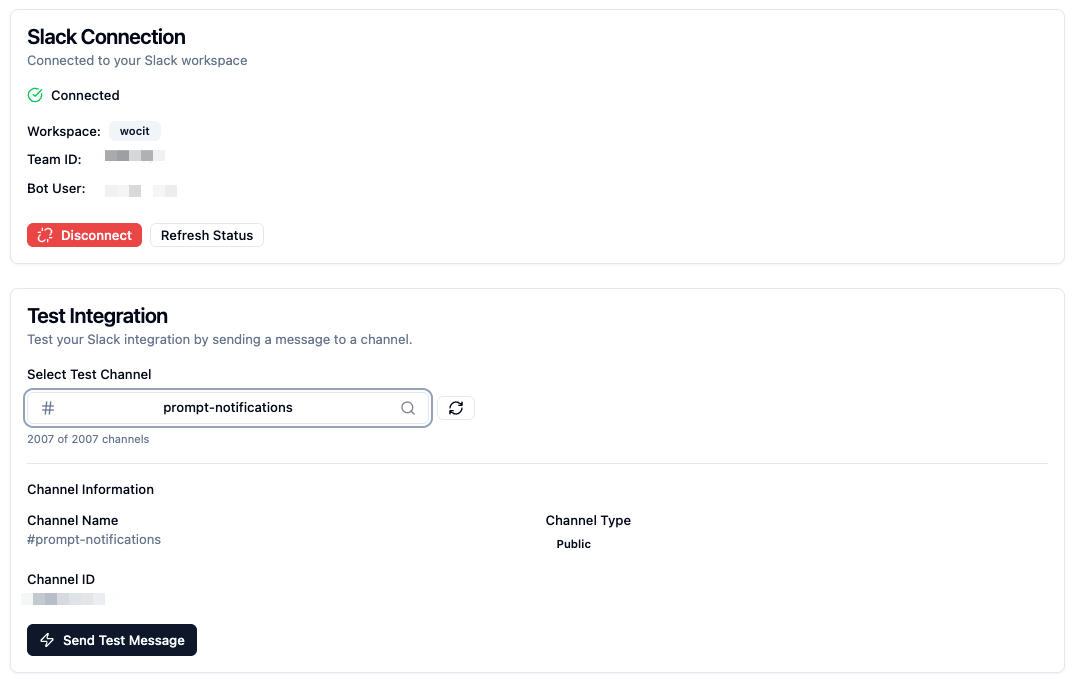
Select a Slack channel and send a test message to confirm that Langfuse can post to your workspace.
### Configure notifications
Choose what Langfuse should send to Slack:
- [Configure prompt update notifications](/docs/prompt-management/features/webhooks-slack-integrations) for prompt version creation, updates, deletion, labels, and tags.
- [Configure alert notifications](/docs/observability/features/alerts) for warning, alert, recovery, and re-notification events.
## FAQ
Which Slack permissions does Langfuse request?
Langfuse requests the following bot scopes:
- `channels:read`: Read public channel metadata so you can choose a destination channel.
- `groups:read`: Read private channel metadata for private channels that the app was invited to.
- `chat:write`: Post configured Langfuse notifications as the Langfuse app.
- `chat:write.public`: Post to public channels without requiring the app to be manually invited first.
Why can't I select a private Slack channel?
Invite the Langfuse app to the private channel in Slack first, then refresh the channel selector in Langfuse. Slack only exposes private channels to apps that are members of those channels.
How does Langfuse handle Slack data?
Langfuse uses Slack OAuth to connect your workspace. Slack credentials are stored encrypted in Langfuse. The Slack app posts only the notifications you configure to the selected Slack channels.
For details about how Langfuse handles data, see the [Langfuse Privacy Policy](/privacy).
How do I disconnect Slack?
In Langfuse, go to **Settings** → **Integrations** → **Slack** and click **Disconnect**.
Existing automations that use the Slack integration will be deactivated.
Does the Slack integration cost extra?
No. The Slack app does not cost extra. Usage is included with your Langfuse plan. See [Langfuse Pricing](/pricing) for plan details.
Where can I get support?
Contact [support@langfuse.com](mailto:support@langfuse.com) or use the in-app support flow in Langfuse.
---
## Agent Instructions
This page is part of the [Langfuse](https://langfuse.com) documentation, published as plain Markdown for AI agents. Every page is available as Markdown by appending `.md` to its URL, or by sending an `Accept: text/markdown` header. This page: `https://langfuse.com/integrations/other/slack.md`.
### Querying these docs
If the answer is not on this page, query the documentation instead of guessing:
- **Semantic search** across all Langfuse docs, returning an answer with the relevant pages and excerpts. Ask a specific, self-contained question:
```bash
curl -sG "https://langfuse.com/api/search-docs" --data-urlencode "query=How do I trace a LangGraph agent?"
```
- **Index of every page**: , with per-section indexes [llms-docs.txt](https://langfuse.com/llms-docs.txt), [llms-integrations.txt](https://langfuse.com/llms-integrations.txt), and [llms-self-hosting.txt](https://langfuse.com/llms-self-hosting.txt).
### Before writing Langfuse code
- **Install the [Langfuse Agent Skill](https://langfuse.com/docs/api-and-data-platform/features/agent-skill).** It encodes Langfuse's own best practices for instrumentation, prompt management, and evaluation, and materially improves results.
- **Read [What does a good trace look like?](https://langfuse.com/docs/observability/best-practices.md)** before instrumenting an application.
- **Verify endpoints, parameters, and response fields** against the [API reference](https://api.reference.langfuse.com) instead of inferring them from code examples.
- **Use the [Langfuse CLI](https://langfuse.com/docs/api-and-data-platform/features/cli)** (`npx langfuse-cli api `) to read or write traces, prompts, datasets, and scores from the terminal.
Found an error in these docs? Please open an issue at .