Observability for Portkey LLM Gateway with Langfuse
This guide shows you how to integrate Portkey's AI gateway with Langfuse. Portkey's API endpoints are fully compatible with the OpenAI SDK, allowing you to trace and monitor your AI applications seamlessly.
What is Portkey? Portkey is an AI gateway that provides a unified interface to interact with 250+ AI models, offering advanced tools for control, visibility, and security in your Generative AI apps.
What is Langfuse? Langfuse is an open source AI engineering platform that helps teams trace LLM calls, monitor performance, and debug issues in their AI applications. Use Langfuse Cloud (hosted by Langfuse, free tier, no infrastructure to run) or self-host it.
Step 1: Install Dependencies
%pip install openai langfuse portkey_aiStep 2: Set Up Environment Variables
Next, set up your Langfuse API keys. You can get these keys by signing up for a free Langfuse Cloud account or by self-hosting Langfuse. These environment variables are essential for the Langfuse client to authenticate and send data to your Langfuse project.
import os

# Get keys for your project from the project settings page: https://cloud.langfuse.com
os.environ.setdefault("LANGFUSE_PUBLIC_KEY", "pk-lf-...");
os.environ.setdefault("LANGFUSE_SECRET_KEY", "sk-lf-...");
os.environ.setdefault("LANGFUSE_BASE_URL", "https://cloud.langfuse.com"); # 🇪🇺 EU region
# Other Langfuse data regions include 🇺🇸 US: https://us.cloud.langfuse.com, 🇯🇵 Japan: https://jp.cloud.langfuse.com and ⚕️ HIPAA: https://hipaa.cloud.langfuse.com
from langfuse import get_client
get_client().auth_check()True
Step 3: Use Langfuse OpenAI Drop-in Replacement
Next, you can use Langfuse’s OpenAI-compatible client (from langfuse.openai import OpenAI) to trace all requests sent through the Portkey gateway. For detailed setup instructions on the LLM gateway and virtual LLM keys, refer to the Portkey documentation.
from langfuse.openai import OpenAI
from portkey_ai import createHeaders, PORTKEY_GATEWAY_URL

client = OpenAI(
    api_key="xxx", #Since we are using a virtual key we do not need this
    base_url = PORTKEY_GATEWAY_URL,
    default_headers = createHeaders(
    api_key = "***",
    virtual_key = "***"
    )
)
Step 4: Run an Example
response = client.chat.completions.create(
  model="gpt-4o",  # Or any model supported by your chosen provider
  messages=[
    {"role": "system", "content": "You are a helpful assistant."},
    {"role": "user", "content": "What are the benefits of using an AI gateway?"},
  ],
)
print(response.choices[0].message.content)

# Flush via global client
langfuse = get_client()
langfuse.flush()
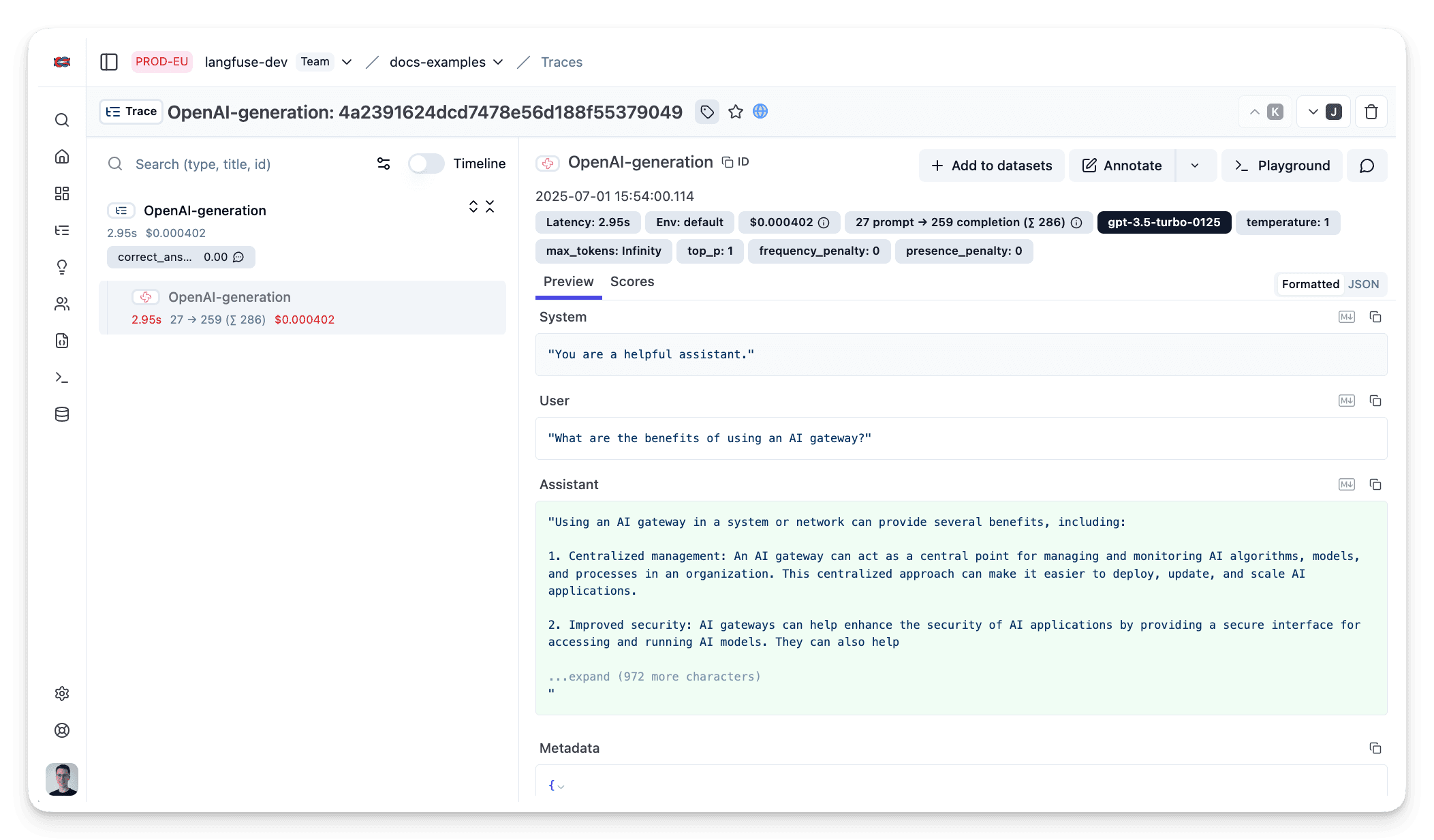
Step 5: See Traces in Langfuse
After running the example, log in to Langfuse to view the detailed traces, including:
- Request parameters
- Response content
- Token usage and latency metrics
- LLM model information through Portkey gateway
Interoperability with the Python SDK
You can use this integration together with the Langfuse SDKs to add additional attributes to the observation.
The @observe() decorator provides a convenient way to automatically wrap your instrumented code and add additional attributes to the observation.
from langfuse import observe, propagate_attributes, get_client

langfuse = get_client()

@observe()
def my_llm_pipeline(input):
    # Add additional attributes (user_id, session_id, metadata, version, tags) to all spans created within this execution scope
    with propagate_attributes(
        user_id="user_123",
        session_id="session_abc",
        tags=["agent", "my-observation"],
        metadata={"email": "user@langfuse.com"},
        version="1.0.0"
    ):

        # YOUR APPLICATION CODE HERE
        result = call_llm(input)

        return result

# Run the function
my_llm_pipeline("Hi")
Learn more about using the Decorator in the Langfuse SDK instrumentation docs.
The Context Manager allows you to wrap your instrumented code using context managers (with with statements), which allows you to add additional attributes to the observation.
from langfuse import get_client, propagate_attributes

langfuse = get_client()

with langfuse.start_as_current_observation(
    as_type="span",
    name="my-observation",
    trace_context={"trace_id": "abcdef1234567890abcdef1234567890"},  # Must be 32 hex chars
) as observation:

    # Add additional attributes (user_id, session_id, metadata, version, tags)
    # to all observations created within this execution scope
    with propagate_attributes(
        user_id="user_123",
        session_id="session_abc",
        metadata={"experiment": "variant_a", "env": "prod"},
        version="1.0",
    ):
        # YOUR APPLICATION CODE HERE
        result = call_llm("some input")

# Flush events in short-lived applications
langfuse.flush()
Learn more about using the Context Manager in the Langfuse SDK instrumentation docs.
Troubleshooting
No observations appearing
First, enable debug mode in the Python SDK:
export LANGFUSE_DEBUG="True"Then run your application and check the debug logs:
- OTel observations appear in the logs: Your application is instrumented correctly but observations are not reaching Langfuse. To resolve this:
- Call
langfuse.flush()at the end of your application to ensure all observations are exported. - Verify that you are using the correct API keys and base URL.
- Call
- No OTel spans in the logs: Your application is not instrumented correctly. Make sure the instrumentation runs before your application code.
Unwanted observations in Langfuse
The Langfuse SDK is based on OpenTelemetry. Other libraries in your application may emit OTel spans that are not relevant to you. These still count toward your billable units, so you should filter them out. See Unwanted spans in Langfuse for details.
Missing attributes
Some attributes may be stored in the metadata object of the observation rather than being mapped to the Langfuse data model. If a mapping or integration does not work as expected, please raise an issue on GitHub.
Next Steps
Once you have instrumented your code, you can manage, evaluate and debug your application:
Manage prompts in Langfuse
Add evaluation scores
Run LLM-as-a-judge Evaluators
Create datasets
Create custom dashboards
Test queries in the Playground
Last updated on


